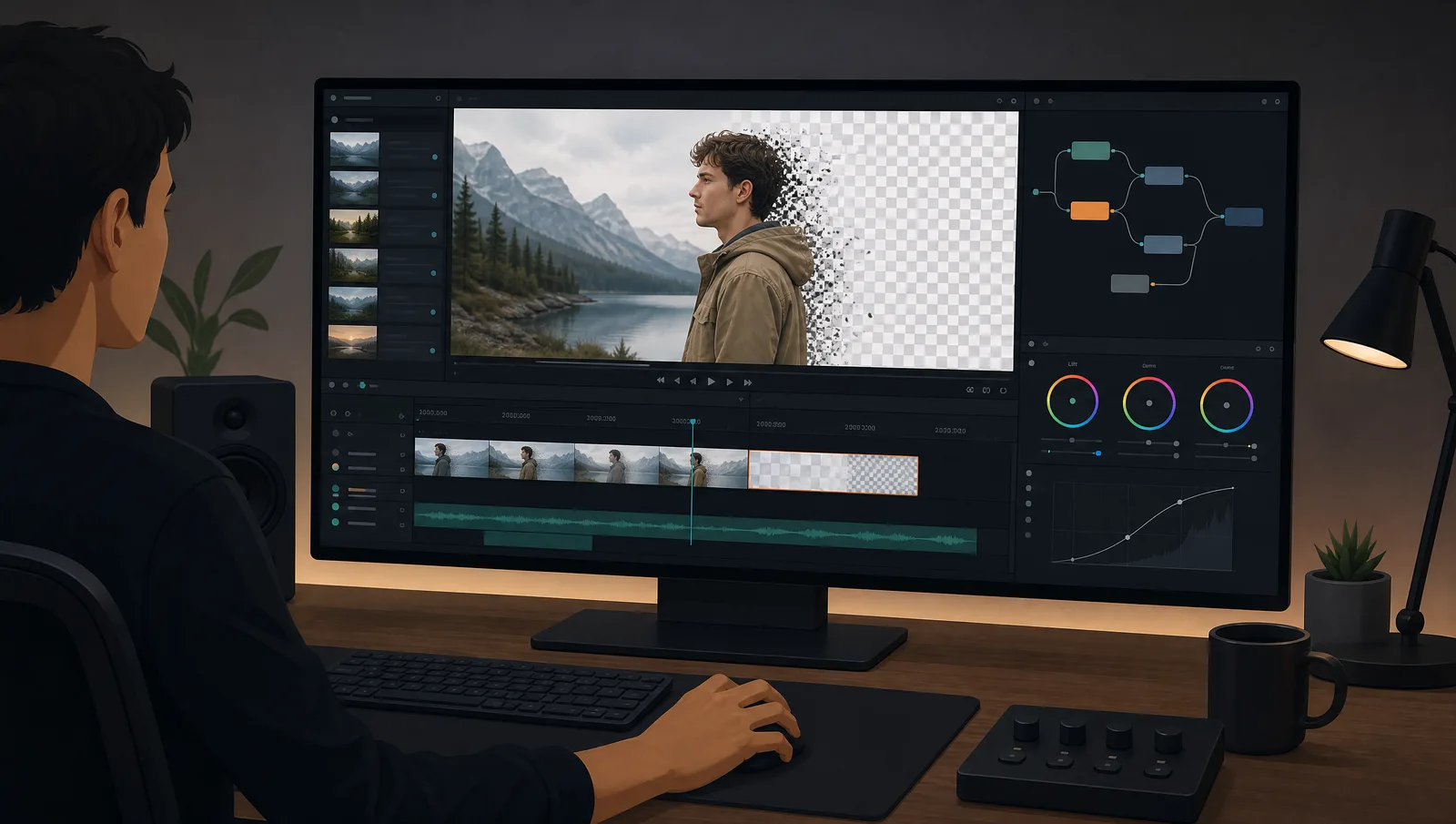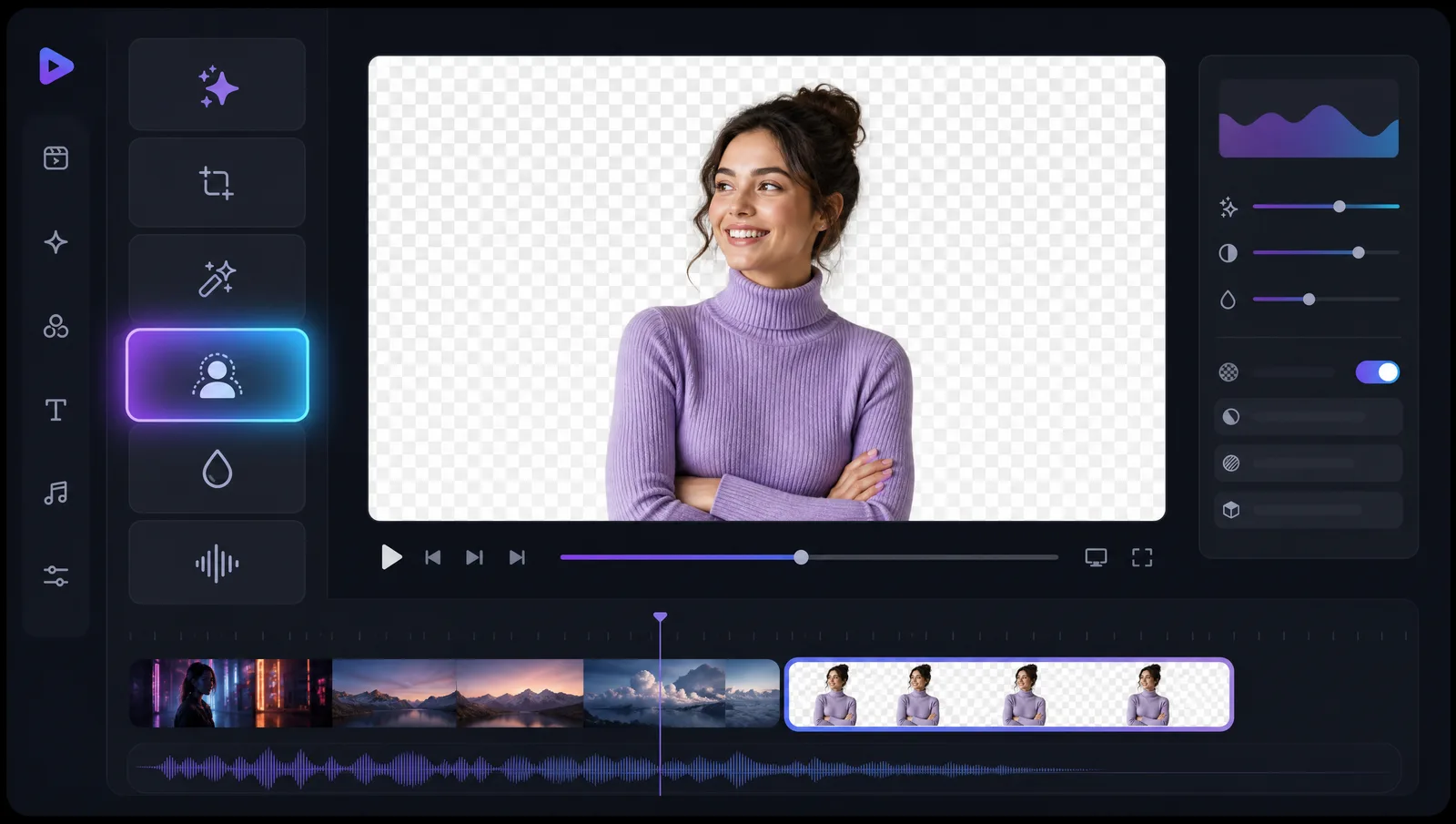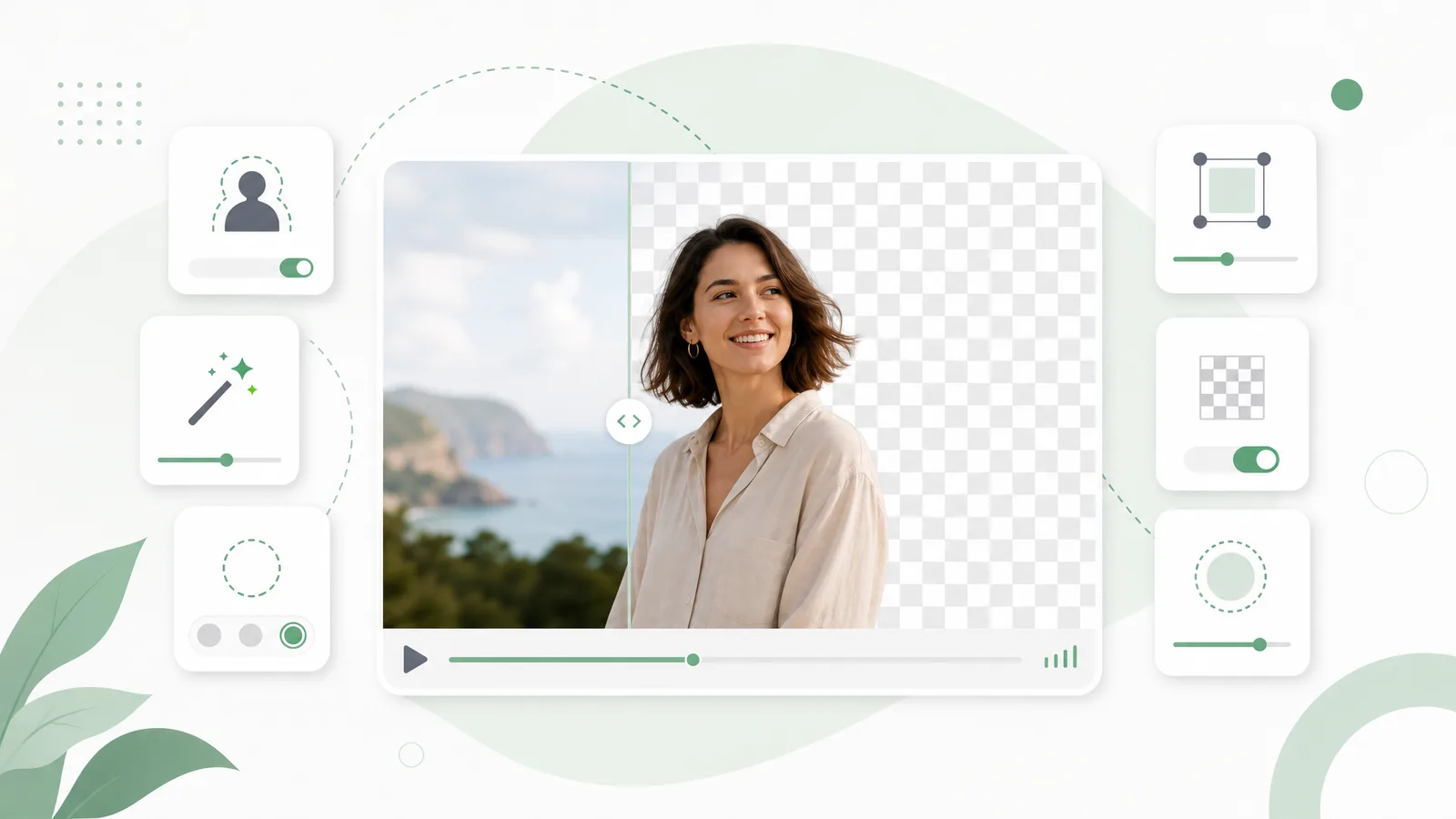
CapCut has two completely different background tools sitting under the same menu, and confusing them is why so many people believe background removal is locked behind Pro. It isn't — but one of the two methods does carry limits on the free plan. Here's how to run both on desktop, mobile and web, exactly where the paywall sits, and what to do when you hit it.
Is background removal free in CapCut?
Chroma key is free in CapCut on every platform — it's the green screen method, and CapCut says so on its own chroma key page. AI auto background removal is a separate tool that sits in the same "Remove BG" menu, and it's the one people hit limits on. That shared menu is exactly why the two get mixed up.
That distinction is the single most useful thing to know before you start:
| Method | What it needs | Free plan status |
|---|---|---|
| Chroma key | A green (or solid-color) backdrop in the footage | ✅ Free, all platforms |
| Auto / AI removal | Nothing — the AI finds the subject | ⚠️ AI-feature allowances apply; check your current plan |
So if you shot against a green screen, CapCut will key it for free all day. If you shot against your living room wall, you're on the AI path — which is where plan allowances come into play.
⚠️ On the specific numbers: CapCut's own tool pages don't publish the free-tier allowance for AI background removal or an export-resolution cap, and third-party figures circulating online disagree with each other. Rather than repeat a number we can't source to CapCut, we'll say what is verifiable: chroma key is free, AI removal is metered in some form, and allowances change. Check your plan screen for the current figures.

See video background removal in action
Upload a clip and watch the background disappear — no green screen, no watermark, all in your browser.
Try it freeHow to remove the background in CapCut on desktop
Import your clip, drop it on the timeline, select it, and open Remove BG in the right-hand panel. Choose Auto removal for one-click subject cutout, or Chroma key if you shot a green screen. Refine, then Apply.
Auto removal (no green screen):
- Click Import and select your video.
- Drag the clip onto the timeline.
- With the clip selected, find Remove BG in the right-hand panel.
- Choose Auto removal — CapCut isolates the subject in one click.
- Clean up misses with Smart brush, Smart eraser, or Simple eraser.
- Click Apply, then export with your chosen resolution and frame rate.
Chroma key (green screen):
- Import and place the clip on the timeline.
- Go to Video → Remove BG → Chroma key.
- Use the color picker to sample your backdrop.
- Adjust Intensity, Shadow, Feature edge, and Clean up edge.
- Export.
Those four chroma key sliders are the whole game. Intensity controls how aggressively the color is removed — push it too far and you eat into your subject. Shadow recovers detail in the darker parts of the key. Feature edge softens the boundary so it doesn't look cut out with scissors. Clean up edge removes the green rim left by spill. Nudge them; don't slam them.
There's also a third tool people find by accident: AI remove, under Video → Basic → AI remove on desktop. That one erases objects from inside a shot — you paint over a logo, a passer-by, or a stray microphone and it fills the gap. It's not background removal, and reaching for it when you want a cutout is a reliable way to waste ten minutes. Different menu, different job.
Which desktop refinement brush should you use?
Use Smart brush to add back parts of the subject the AI dropped, Smart eraser to remove background the AI kept, and Simple eraser only for hard-edged manual cleanup where the AI keeps guessing wrong.
In practice the smart tools are edge-aware — they snap to the boundary they think is correct, which is what you want on hair or clothing folds. The simple eraser ignores all of that and just removes what you paint. That makes it the right choice for a hard object like a table edge, and the wrong choice for anything organic.
How to remove the background in CapCut on mobile
Tap New project, pick your clip, then tap Edit → Remove BG and choose Auto removal, Custom removal (brush), or Chroma key. Export from the top-right when you're happy.
- Tap New project.
- Select your video from the gallery and tap Add.
- Tap Edit → Remove BG.
- Choose Auto removal, Custom removal for manual brushing, or Chroma Key.
- Tap Export and pick your resolution and frame rate.
The mobile app is where most people first hit the free-plan ceiling, because it's the platform where auto removal is the natural choice — you're editing a phone clip shot in a normal room, not a studio green screen.
How to remove the background in CapCut online
In the web editor, import your clip, select it, then open Smart tools → Remove background and pick Auto removal or Chroma key. You can swap in a solid color, image, or video background straight away.
- Create a new video project.
- Click + to import your video and drag it to the timeline.
- Select the clip, then open Smart tools → Remove background.
- Choose Auto removal, or Chroma key for solid backgrounds.
- Replace the background with a color, image, or video.
- Export, adjusting resolution and format.
The web editor is handy because there's nothing to install — but it's the same account and the same plan as the desktop app, so it isn't a way around any allowance you've already used up.
Getting a cleaner cutout out of CapCut
Better input beats better sliders. Even lighting, clear separation between your subject and whatever is behind them, and avoiding clothing that matches the background will do more for your cutout than any refinement brush.
Four things that consistently move the needle:
- Contrast between subject and background. Auto removal works by finding the subject, so a dark jacket against a dark wall is genuinely hard for it. A step to the side is often the entire fix.
- Avoid heavy motion blur. Fast movement smears the subject boundary across pixels that are part subject, part background. Neither auto removal nor chroma key can cleanly resolve those.
- Don't stand against the green screen. Green light bounces off the backdrop onto your shoulders and hair. Three feet of separation removes most spill before you touch a slider.
- Refine in short strokes. With Smart brush and Smart eraser, several small passes beat one long drag — you keep the edge-aware snapping working in your favour instead of overriding it.

Where CapCut's free plan actually stops you
The friction isn't chroma key — that's free. It's the metered AI auto removal, and above all the fact that CapCut has no transparent-alpha export in its normal flow.
Two walls, in the order people hit them:
- AI removal is metered. Auto removal is an AI feature with plan allowances, so batching a lot of social clips eventually runs into them. The exact figures aren't published on CapCut's tool pages and do change — check your plan screen.
- No transparent file to hand off. This one is structural, not a plan limit. CapCut is built to replace the background inside its own timeline. If what you actually need is a cutout to drop into Premiere, Resolve, or After Effects, you need a file with a real alpha channel — and that isn't what CapCut's standard export produces.
The second is the quiet dealbreaker for anyone whose CapCut edit is only step one of a bigger project, and it's the one no upgrade fixes.

A free online alternative when you hit the limits
If you've used up your AI removals, or you need a real transparent file to hand to another editor, an online background remover covers both — no install, and you pay only for the seconds you process.
Our video background remover uses the Bria v3 matting model, so it separates subject from background with no green screen required, and exports a transparent WebM carrying a genuine alpha channel — the thing CapCut's normal export doesn't produce. It's free to start and adds no watermark; you pay only for the seconds you process. There's a dedicated CapCut alternative page if you want the side-by-side.
If you did shoot a green screen, the green screen remover and chroma key remover pages target that job specifically — though it's worth repeating that CapCut's own chroma key is free and perfectly good when your footage cooperates.
Remove your video background now
Automatic, accurate cutouts in minutes. Start free — no install, no watermark.
Get startedRealistically, most people end up using both. CapCut is an excellent, genuinely free editor for cuts, captions, and effects. It's just not built to hand you a transparent asset — so pull the cutout where cutouts are the whole product, then bring it back into CapCut to finish.
A workflow that sidesteps the metering entirely: remove the background online, export the transparent WebM, then import that into CapCut as an overlay layer. CapCut never runs its AI removal — it's just compositing a clip that already carries an alpha channel — so nothing comes out of your allowance, and you keep every CapCut feature you actually wanted it for.
CapCut vs an online remover: which fits your job?
Choose CapCut when the background swap happens inside an edit you're finishing there anyway. Choose an online remover when the cutout itself is the deliverable, when you've used up your AI removals, or when another editor needs the file.
| Your situation | Better fit |
|---|---|
| Shot a green screen, editing in CapCut | CapCut chroma key — free, not metered |
| No green screen, occasional clip | CapCut auto removal — until your allowance runs out |
| No green screen, batch of clips | Online remover — no monthly cap |
| Handing a cutout to Premiere / Resolve | Online remover — you need a real alpha channel |
The pattern is consistent with how these tools are built. CapCut is an editor that includes background removal; a dedicated remover is background removal that outputs a file. When your end product is a finished video, the editor wins. When your end product is an asset someone else will composite, the dedicated tool wins.
Frequently asked questions
Is CapCut's chroma key a Pro feature?
No. Chroma key (green screen removal) is available free in CapCut across desktop, mobile, and web. The confusion comes from AI auto background removal, a separate tool in the same menu that does carry free-plan limits.
How many background removals do I get on the free CapCut plan?
CapCut doesn't publish that figure on its background removal or chroma key pages, and third-party numbers circulating online disagree — so check your plan screen for the current allowance. What is clear from CapCut's own pages: chroma key is free and is not part of the AI metering.
Can CapCut remove a background without a green screen?
Yes — use Auto removal (called Remove BG on desktop and mobile, or Remove background under Smart tools on web). It uses AI to find the subject, so no green screen is needed, but it's the metered path rather than the free chroma key one.
Can I export a transparent video from CapCut?
CapCut's standard export replaces the background inside the project rather than handing you a file with an alpha channel. If you need a transparent asset for another editor, export a transparent WebM from an online remover instead — our transparent video guide covers which formats keep alpha.
Why does my CapCut chroma key leave a green edge?
Increase Clean up edge to remove spill and use Feature edge to soften the boundary. If green survives both, your subject was standing too close to the backdrop when you shot it.
Is the CapCut web editor different from the app?
The tools are the same, just arranged differently — background removal sits under Smart tools on web and Remove BG in the app. It's one account across both, so the web editor is not a way around an allowance you've already used.
What is AI remove in CapCut, and is it the same as Remove BG?
No. AI remove (Video → Basic → AI remove on desktop) erases objects from inside a shot — a logo, a passer-by, a stray microphone — and fills the gap. Remove BG separates your subject from the background. Different menus, different jobs.
Can I use a transparent video as an overlay in CapCut?
Yes, and it's a good way to avoid the AI metering entirely: remove the background elsewhere, export a transparent WebM, then import it into CapCut as an overlay layer. CapCut just composites the existing alpha channel, so nothing comes out of your allowance.
How does CapCut compare to other editors for background removal?
DaVinci Resolve gives you far more keying control with nothing metered, at the cost of a real learning curve. Runway has strong AI masking but is plan-gated and caps clips at five seconds. CapCut is the easiest of the three, and the only one of them whose free chroma key has no meter at all. On the professional side, Premiere Pro has no AI removal at all — only Ultra Key on a green screen, or rotoscoping. Canva sits in the same consumer bracket as CapCut and makes the opposite trade — removal is locked behind Pro, but the design tools around it are far deeper.