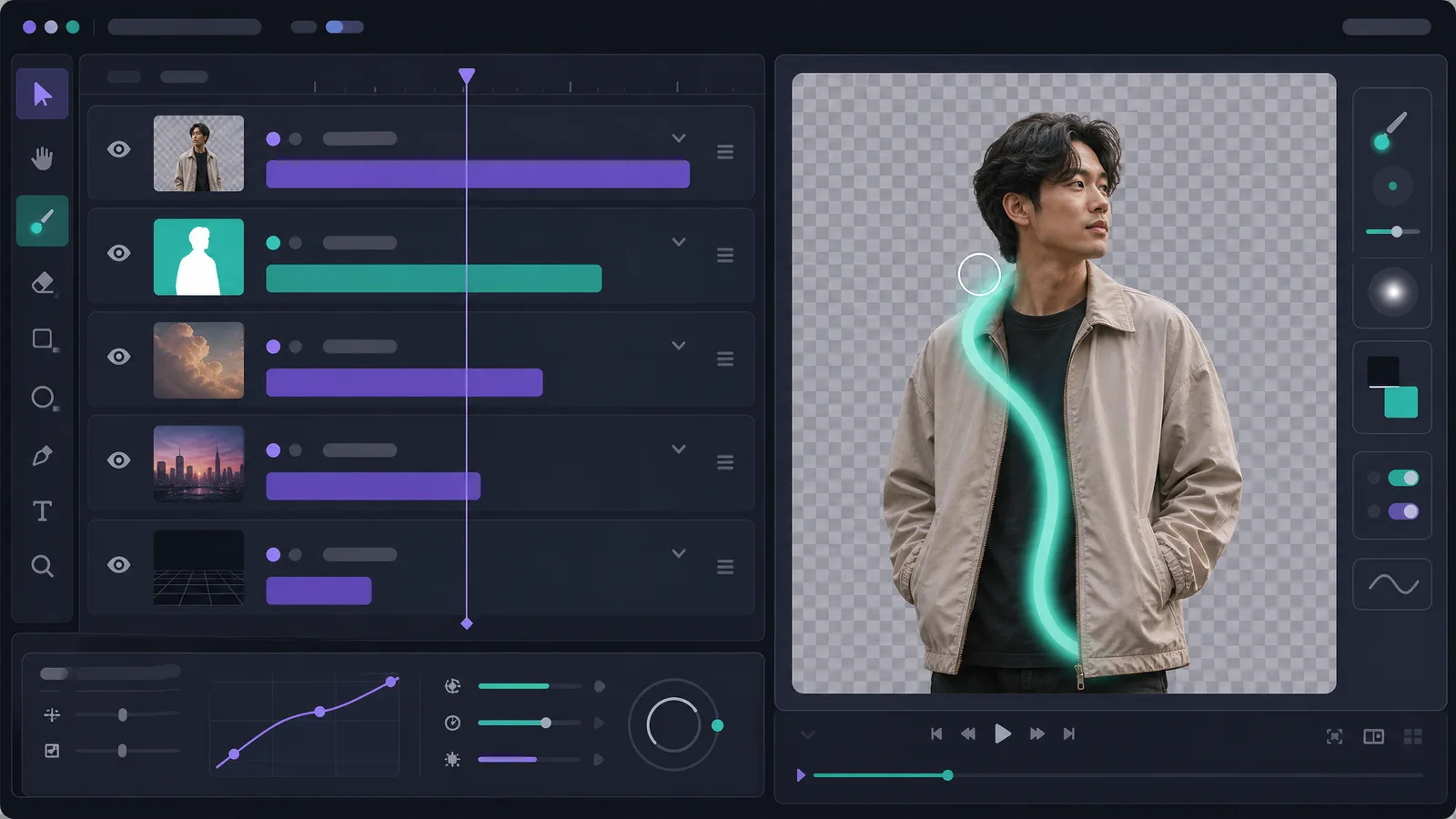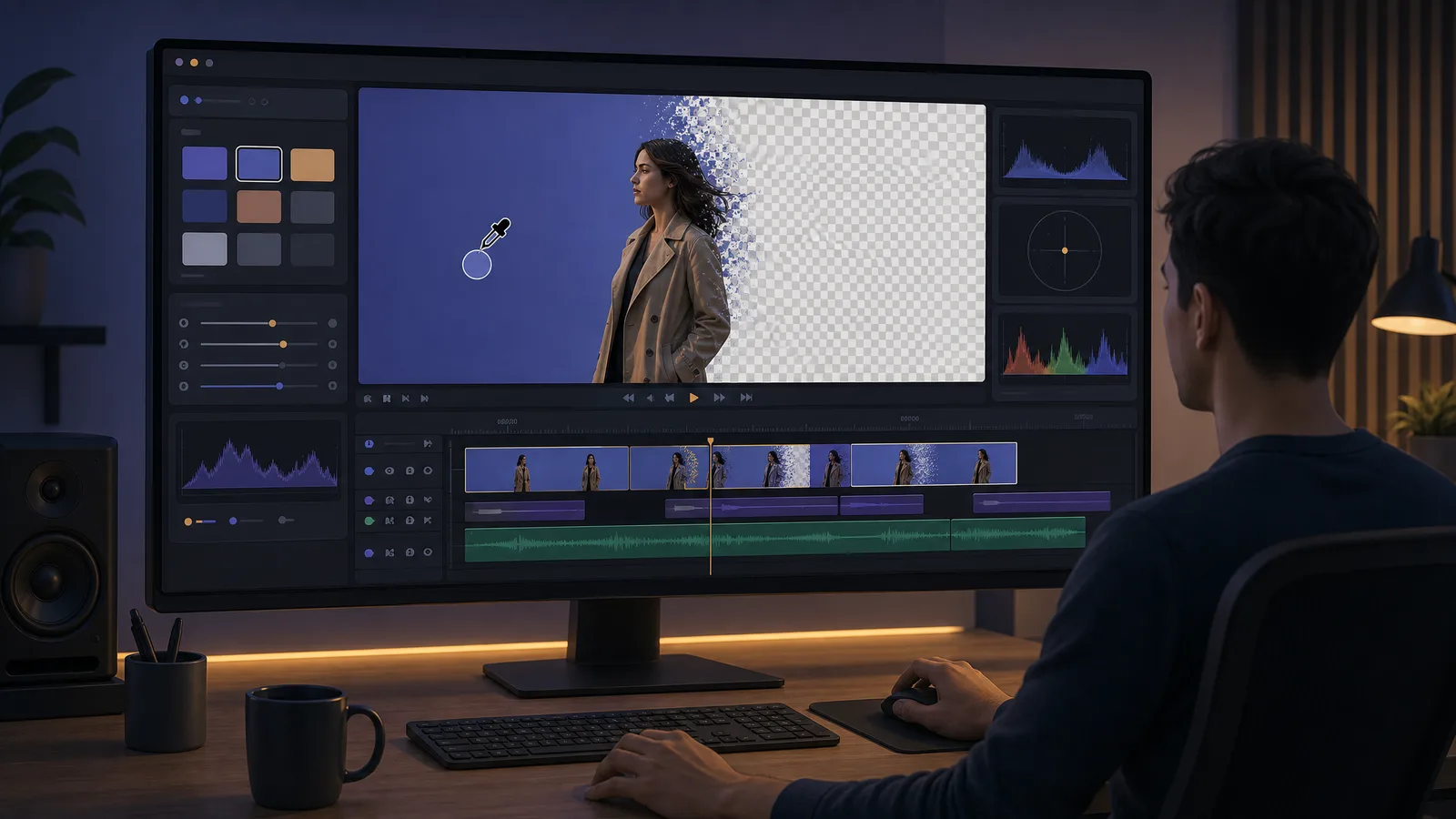
Canva's video Background Remover is one click and genuinely good — and it has two limits that catch people at exactly the wrong moment. It is Pro only, so the button is there on a free account but will not run. And Canva cannot export a transparent video at all, so the clean cutout you just made has to have something placed behind it before you can download it. Here's the full workflow, both walls, and what to do when you actually need the transparent file.
Is video background removal free in Canva?
No. Background Remover is a Canva Pro feature on both images and video. On a free account the button appears in the editor but is locked, and video removal in particular is not available on the free tier at any clip length.
Worth separating the two things people mix up, because only one of them is a paywall:
| Free Canva | Canva Pro | |
|---|---|---|
| Video Background Remover | ❌ Locked | ✅ Included |
| Image Background Remover | ❌ Locked | ✅ Included |
| Transparent PNG export | ❌ Locked | ✅ Included |
| Transparent video export | ❌ Not possible | ❌ Not possible |
| Chroma-key style green screen removal | Manual workarounds only | Background Remover |
That bottom row is the one to read twice. Transparent video export is not a Pro feature you can buy — Canva does not offer it on any plan. Paying upgrades your ability to remove a background, not your ability to export the transparency.
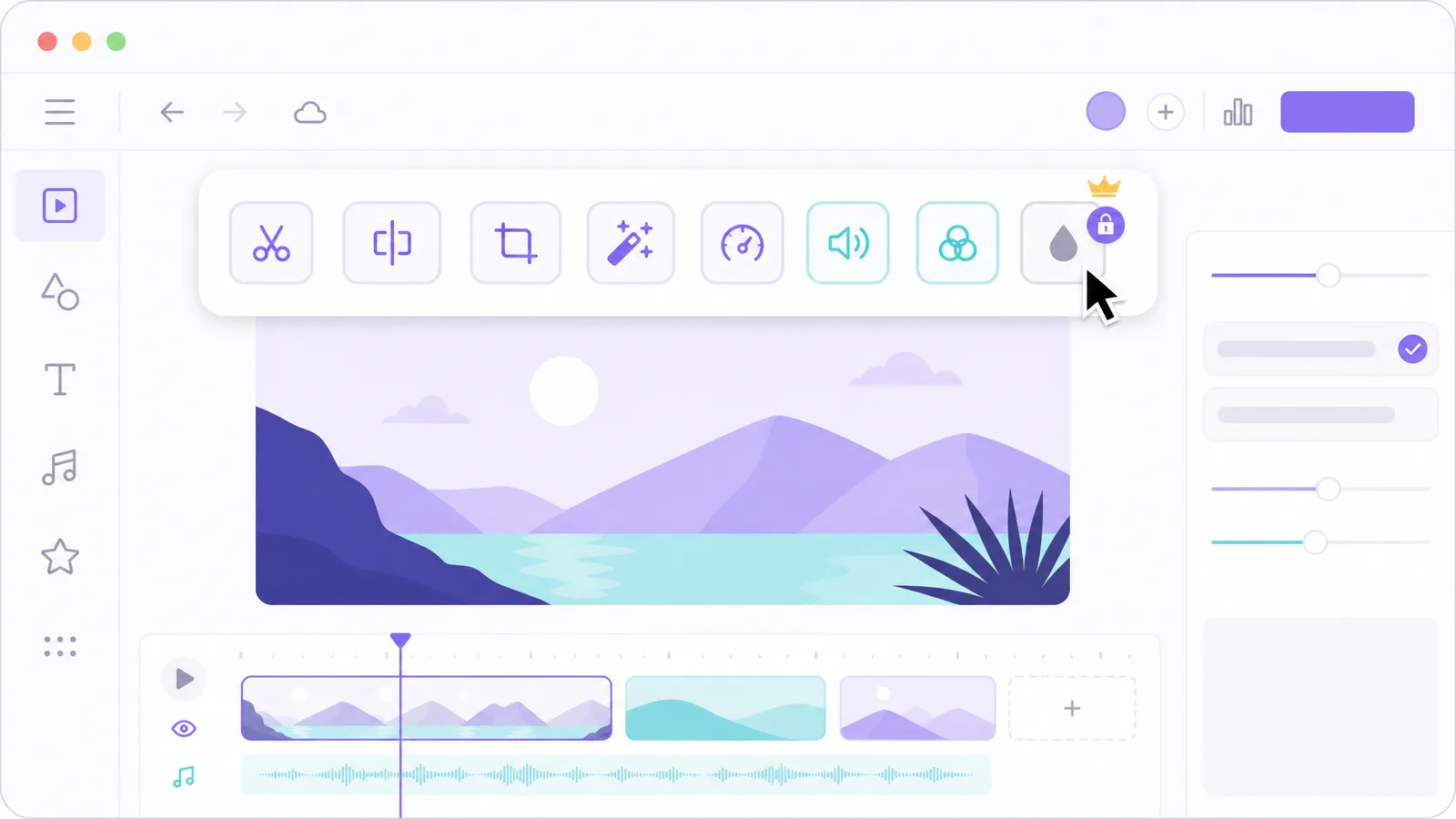
If a transparent file is what you're after, you can stop reading the Canva route here — our green screen remover exports a real alpha channel, and it's free to start. If you want the Canva workflow first, keep going.
See video background removal in action
Upload a clip and watch the background disappear — no green screen, no watermark, all in your browser.
Try it freeHow to remove a video background in Canva
Select your clip on the canvas, click Edit video in the toolbar, and choose Background Remover. Canva processes the clip in the cloud and returns it with the background cut out — no green screen, no keying, no settings to tune.
The complete path:
- Upload the clip. Open the Uploads panel and add your video, or drag the file straight onto the canvas.
- Place it on the canvas. Drag it into your design so it becomes a selectable element rather than a library item.
- Select the clip with a single click.
- Click Edit video in the toolbar above the canvas.
- Choose Background Remover and wait — processing time scales with clip length and runs on Canva's servers, not your machine.
- Add a background behind it. Drop a colour, image or video layer below the cutout in the layer order.
- Download as MP4 via Share > Download.
Step 6 is not optional. Canva has no transparent video export, so if you download without placing something behind the cutout, you get your subject on Canva's default canvas background — usually white — permanently baked into the file.
What Canva's Background Remover can and cannot do
It removes backgrounds well on clearly separated, well-lit subjects and it needs no green screen. What it does not give you is control — there is no threshold, no edge feather, no spill setting. You get the model's answer, and if it's wrong on your clip, there is no slider to fix it.
Where it holds up and where it doesn't:
- Works well — a person against a plain or moderately busy wall, even lighting, clear contrast between subject and background.
- Struggles — fine hair detail, motion blur on fast movement, subjects wearing colours close to the wall behind them, low-light footage.
- No manual correction — unlike a keyer, you cannot mask a problem region and treat it separately. It's one pass, all or nothing.
- Cloud processing — long clips take real time, and it happens on Canva's servers, so a slow connection is felt on both the upload and the result.
That trade is the point of the tool, and for most Canva work it's the right one. Canva is a design app that added video, not an editor — its users want a good result without a keying vocabulary. If your footage cooperates, one click is a better deal than fifteen minutes of sliders. If it doesn't, you'll want an approach that gives you an edge you can actually inspect.
How to remove a green screen in Canva
Canva has no dedicated chroma key tool — no key colour to sample, no similarity slider, no spill control. Green screen footage goes through the same one-click Background Remover as everything else, and the model treats the green wall as just another background.
That is either convenient or frustrating depending on what you shot:
- Well-lit green screen — Background Remover handles it fine. You get roughly what a chroma keyer would give you, with none of the setup.
- Unevenly lit green screen — a proper keyer would let you widen the tolerance to cover both the bright and dark patches. Canva gives you no such control, so a badly lit screen can actually key worse here than in a real editor.
- Green spill on hair and shoulders — no despill control exists. Whatever green rim the model leaves is the green rim you keep.
There is a workaround people reach for that is worth naming so you can skip it: layering a green rectangle and playing with blend modes does not key anything. Blend modes composite two layers mathematically; they do not build a matte. You may get something that looks passable on one frame and falls apart the moment your subject moves.
If you shot a green screen specifically because you wanted control over the key, Canva is the wrong final step. Do the key in a tool with a real chroma keyer, export a transparent clip, then bring that clip into Canva for the design work.
Why you cannot export a transparent video from Canva
Canva's download formats for video are MP4 and GIF, and its transparent-background option applies to image exports only — the transparent PNG toggle. There is no equivalent for video on any plan, so the alpha channel your cutout implies never reaches a file.
This surprises people because the two features sit next to each other in the interface:
| Export | Transparency | Plan |
|---|---|---|
| PNG | ✅ Transparent background option | Pro |
| MP4 video | ❌ No transparency option | Any |
| GIF | ❌ Flattened | Any |
So the practical consequence is this: inside Canva, background removal is only a compositing step. You remove the background so you can put a different one behind it, in that design, immediately. The moment your goal is a reusable transparent asset — an overlay for a stream, a clip to hand to an editor, a subject you'll place on three different backgrounds — Canva structurally cannot produce it.
How to get a transparent clip and bring it back into Canva
Cut the background out in a tool that exports alpha, download a transparent WebM, then upload that file to Canva as a normal video element. The transparency travels with the file, so it composites over whatever you place beneath it in your design.
That round trip solves both walls at once — you don't need Pro for the removal, and you end up with a reusable asset instead of a flattened MP4:
- Upload your clip to our video background remover — it uses the Bria v3 matting model and needs no green screen.
- Export a transparent WebM with a real alpha channel. It's free to start, adds no watermark, and you pay only for the seconds you process.
- Back in Canva, add the WebM through the Uploads panel like any other video.
- Layer it over your background and carry on designing.
You now have a file you can reuse across designs, hand to someone else, or drop into an editor — none of which the Canva-only route produces. The transparent video page covers what alpha output actually means, and the transparent export guide explains why WebM is the format that survives this trip.
One caveat on the round trip: upload the WebM, don't re-export it from another app first. Every extra encode is a chance for something in the chain to flatten the alpha, and MP4 is the default output almost everywhere — which is precisely the format that cannot carry transparency. Take the WebM straight from the remover to Canva's Uploads panel.
Does Canva's background remover work on mobile?
Yes — the Canva mobile app exposes the same Background Remover under the video editing tools, with the same Pro requirement and the same processing on Canva's servers rather than on your phone.
What changes on mobile is everything around it:
- Upload time matters more. The clip goes to Canva's servers either way, but on mobile data a long video is a genuinely slow round trip.
- Layer ordering is fiddlier. Placing a background behind the cutout takes more taps than it takes clicks, and it is still mandatory — mobile has no transparent export either.
- No extra control appears. There is no mobile-only threshold or refinement; it is the same single pass.
If you're working on a phone and the result is not clean, the answer is the same as on desktop: the model has no settings, so a difficult clip needs a different tool rather than more attempts. Uploading a transparent WebM works identically on mobile, so the round trip described above is available there too.
Remove your video background now
Automatic, accurate cutouts in minutes. Start free — no install, no watermark.
Get startedCanva versus a dedicated online remover
Canva wins when the cutout is one step inside a design you're already building. A dedicated remover wins when the transparent clip is the deliverable, or when you're on a free account and the Canva button won't run.
| Canva | Dedicated remover | |
|---|---|---|
| Removal on a free account | ❌ Pro required | ✅ Free to start |
| Transparent file out | ❌ Impossible | ✅ WebM with alpha |
| Design tools around it | ✅ Full editor | ❌ Removal only |
| Green screen footage | Same one-click pass | Dedicated chroma key handling |
| Reuse across designs | Re-do each time | One file, reuse anywhere |
Neither replaces the other. If you live in Canva and have Pro, use Background Remover — it's right there and it's fast. If you need the file itself, or you're on free, do the removal elsewhere and bring the transparent clip in.
If you shot an actual green screen, that's a different job again and both tools handle it as an ordinary removal — our chroma key remover targets that intent specifically. And if you're comparing consumer video tools generally, CapCut's auto removal has a similar shape to Canva's: fast, quota-limited, and also unable to export transparency.
Frequently asked questions
Is Canva's video background remover free?
No. Background Remover is a Canva Pro feature for both images and video. On a free account the button is visible in the editor but locked, and there is no free tier allowance for video background removal.
Can Canva export a video with a transparent background?
No — on any plan. Canva's transparent-background export applies to PNG images only. Video downloads are MP4 or GIF, neither of which Canva writes with an alpha channel, so you must place a background behind your cutout before downloading.
Does Canva have a chroma key or green screen tool?
Not a traditional chroma keyer with colour and threshold controls. Canva's Background Remover handles green screen footage the same way it handles any other clip — one automatic pass, with no key colour to sample and no spill settings.
Why does my Canva cutout have a white background?
Because Canva flattened the transparency at export. With nothing placed behind the cutout, the download bakes in the canvas background. Add a colour, image or video layer beneath the clip before downloading, or export a transparent file elsewhere.
Can I upload a transparent video to Canva?
Yes. Upload a WebM with an alpha channel through the Uploads panel and Canva keeps the transparency, compositing it over whatever sits below it in your design. This is the standard way to use a transparent clip inside Canva.
Why is Canva's background remover not working on my video?
Two common causes: you're on a free account, where the feature is locked, or the clip is difficult for the model — low contrast between subject and background, poor lighting, or heavy motion blur. There are no settings to adjust, so difficult footage needs a different tool rather than tuning.
How long can a video be for Canva's background remover?
Processing happens in the cloud and scales with clip length, so longer videos take proportionally longer to return. For anything beyond short social clips, expect a real wait and a dependency on your upload speed.