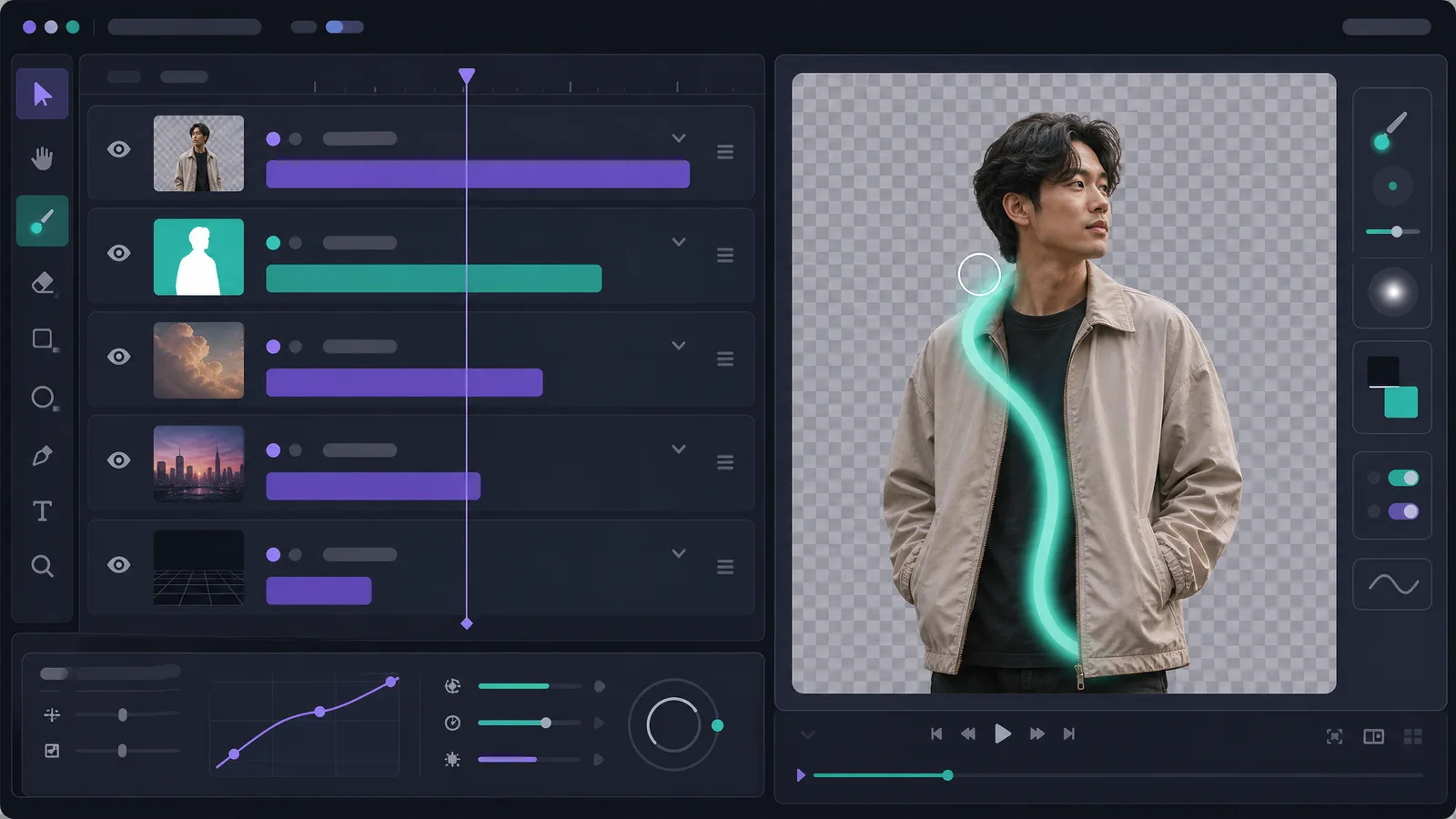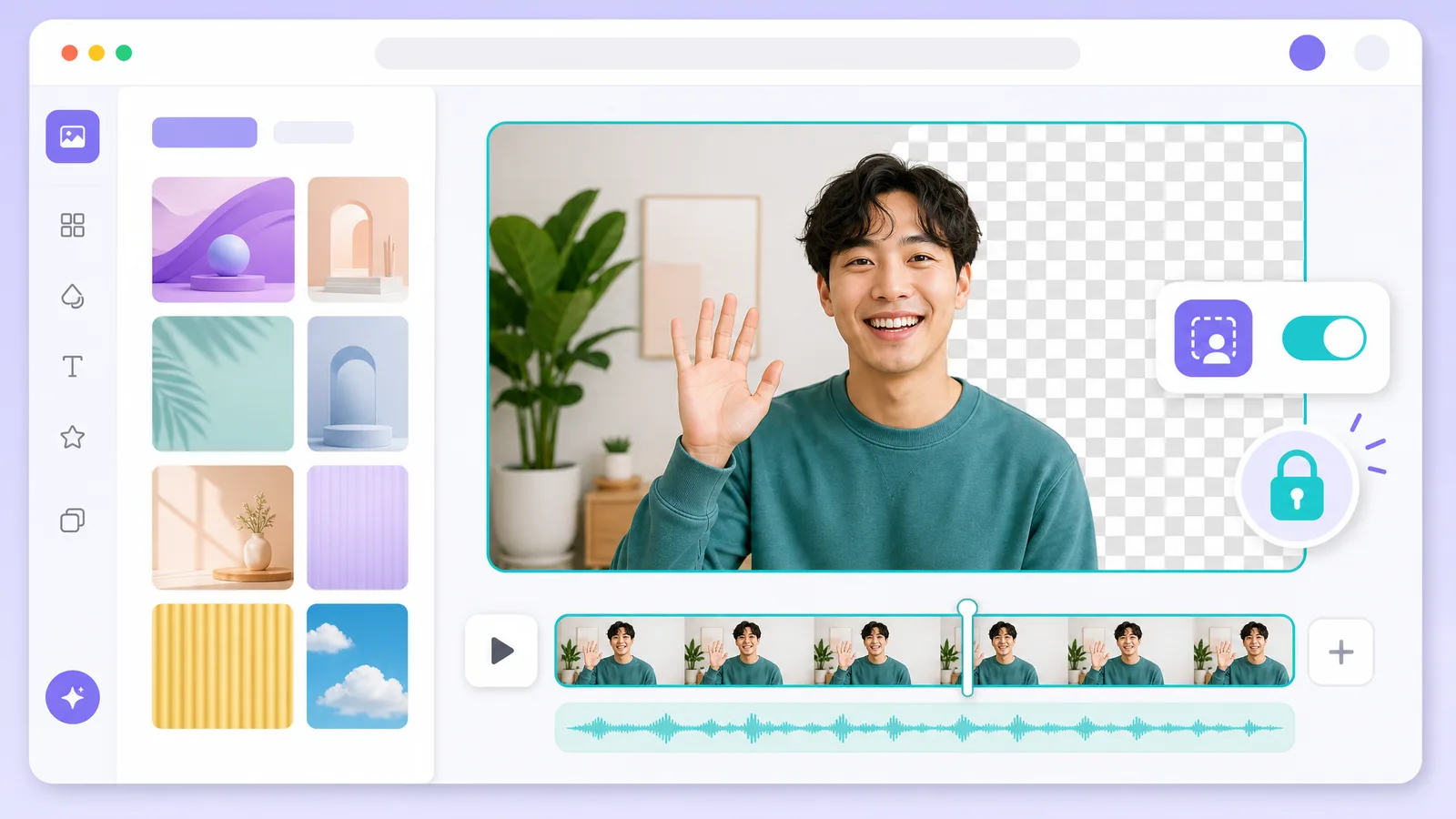
OBS Studio includes Chroma Key for a physical green or blue backdrop, but it does not document built-in AI background removal for an ordinary camera. What people mean by "OBS background removal" is usually one of two add-ons: the community Background Removal plugin, or NVIDIA Broadcast feeding OBS an already-processed virtual camera. Both work in real time on a live stream. Both also have a quality ceiling that is worth understanding before you spend an evening on sliders.
Real-time and post-production are different problems
Real-time removal has to decide which pixels are you within a single frame — at 60 fps that is roughly 16 milliseconds — while OBS and your encoder share the same machine. Post-production is not tied to that live deadline, and you can preview the result before export. That time budget, more than the model itself, is why a live virtual green screen usually looks softer around hair than a cutout made afterwards. Either way, the result still depends on your footage, lighting, and movement.
Keeping the two apart saves a lot of frustration:
| Live in OBS | Offline after recording | |
|---|---|---|
| Processing constraint | Must keep pace with the live stream | Not tied to live frame delivery |
| Hair and fine edges | Check them while the subject moves | Preview and review them before export |
| Hardware load | Continuous, during your stream | Cloud job started from the browser; no local GPU required |
| Output | Composited stream or recording | Clip with a real alpha channel |
| Good for | Streaming, calls, live overlays | Editing, VFX, thumbnails, reuse |
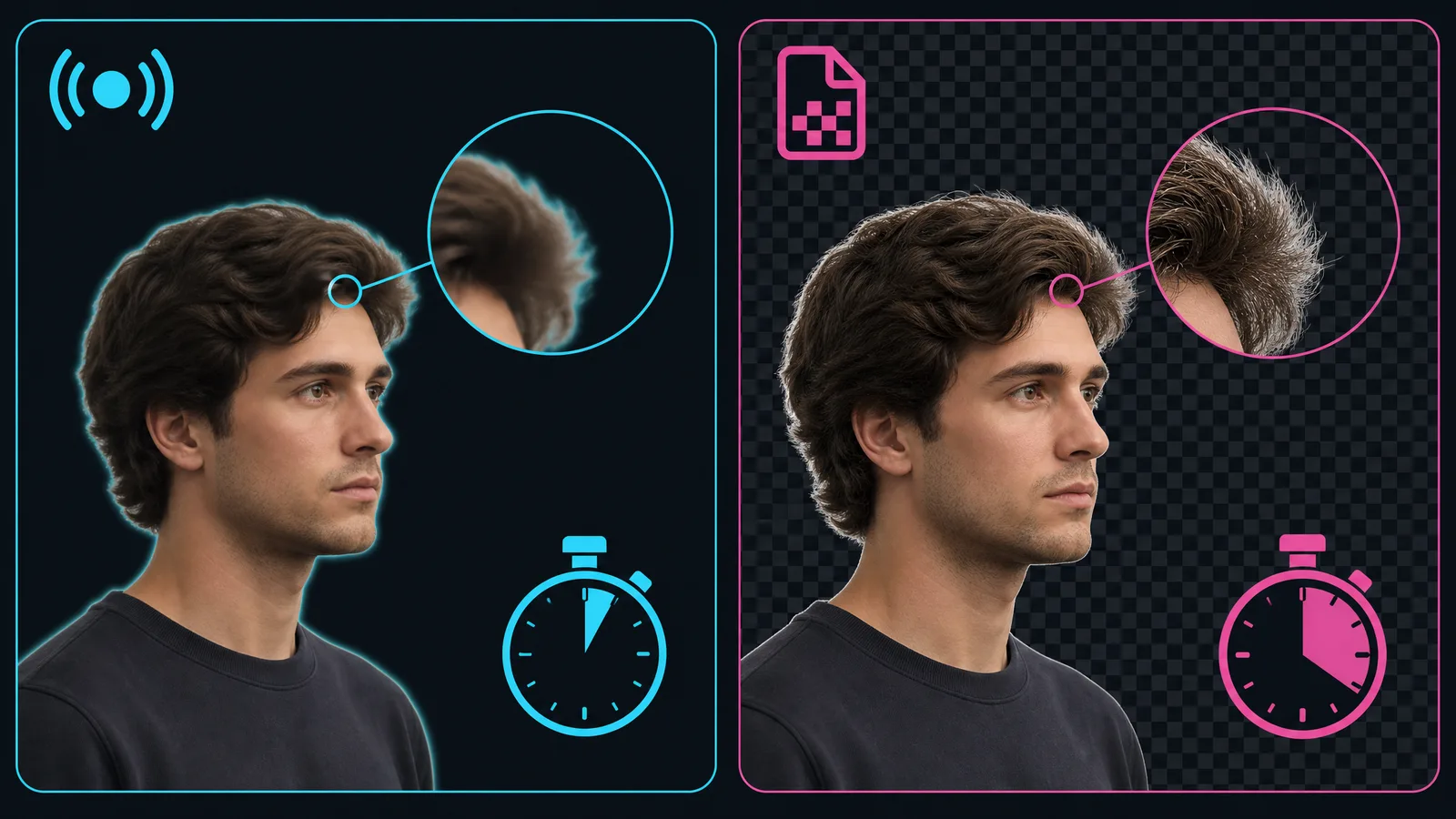
If you're streaming, the plugin below is the right tool and this guide will get it set up properly. If you're recording footage to edit later, you are not solving a real-time problem at all — record clean and matte it afterward, where our video background eraser can produce a transparent clip instead of a pre-composited one.
See video background removal in action
Upload a clip and watch the background disappear — no green screen, no watermark, all in your browser.
Try it freeHow to install the OBS Background Removal plugin
The community plugin is obs-backgroundremoval, maintained by Roy Shilkrot. It runs portrait segmentation on each camera frame and turns the result into a mask — a virtual green screen without physical green fabric.
Installation depends on your platform:
- Windows — follow the plugin's Windows install guide. The verified DLL path is
C:/ProgramData/obs-studio/plugins/obs-backgroundremoval/bin/64bit/obs-backgroundremoval.dll. Restart OBS Studio after installation. - Linux and macOS — use the plugin's current Download & Install guide and select the instructions for your platform, architecture, plugin release, and OBS version. Do not reuse a package command or binary from another platform.
As verified on September 22, 2026, the current stable release is 1.4.1. Version 1.5.0 is a prerelease and requires OBS Studio 32 or later, so do not treat it as the default download for an older OBS installation. If the filter does not appear after a restart, first recheck the plugin path and release compatibility.
Once it's installed, add it as a filter rather than a source:
- Right-click your camera source in the Sources list.
- Choose Filters.
- Under Effect Filters, click + and select Background Removal.
- Pick a segmentation model — smaller models are lighter on your CPU and give a rougher edge; available choices vary with the plugin build.
- Pick an available backend. CPU operation does not require a GPU. Acceleration depends on the platform and plugin build; CUDA is available only when that build includes the ONNX Runtime CUDA execution provider.
Choose the backend before you tune the mask; a CPU-bound segmentation filter competing with your encoder is a common reason OBS starts dropping frames after you add background removal. If frames still drop, try the GPU backend if your build offers it, or a smaller model.
How to tune the plugin and inspect the edge
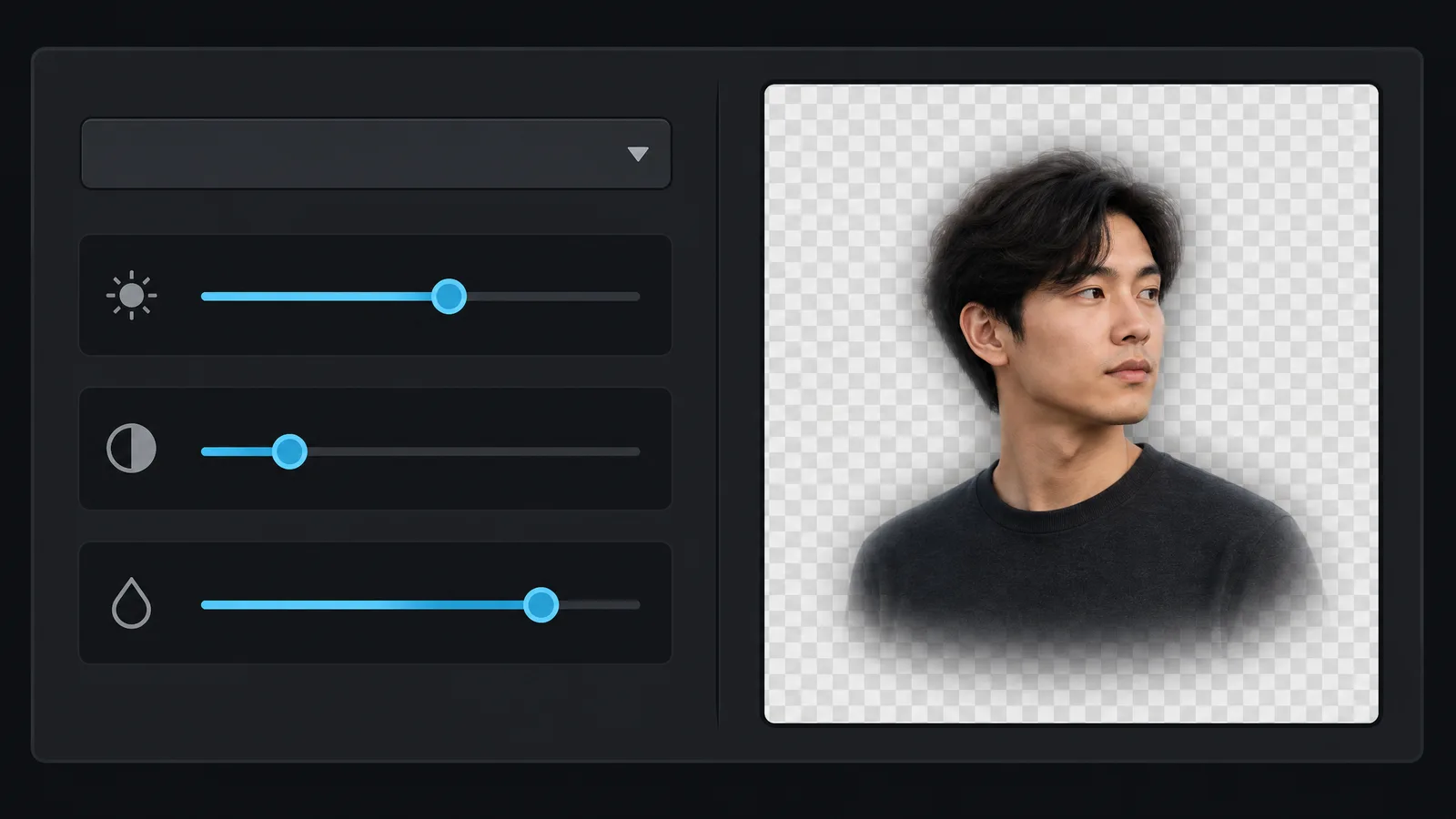
Version 1.4.1 exposes threshold, contour smoothing, feathering, and temporal smoothing. Set them in your real streaming light, one at a time, and record the same short movement after each change so you can compare like with like.
The controls that matter, in the order to touch them:
- Threshold — how confident the model must be that a pixel is you. Too low leaves background haze; too high carves into your outline. Raise it until the background clears, then back it off a notch before it starts eating your shoulders.
- Feathering — softens the boundary so it doesn't look cut out with scissors. A small amount usually reads as natural; a large amount reads as a halo.
- Temporal smoothing — blends the mask across consecutive frames. It is the setting most likely to calm an edge that shimmers while you sit still, and the one most people never find.
- Contour smoothing — rounds off jagged outline steps; check it at the resolution you actually stream.
- Model and backend — if the edge stays rough, try the next model your build offers and watch OBS's status for dropped frames while you do.
Lighting often does more than every slider combined. The model separates you from what's behind you, so contrast between your clothing and your wall is the real input. A dark hoodie against a dark room is about the hardest case there is. A light aimed at your shoulders and hair from behind — even a cheap one — tends to improve the mask more than any filter setting.
NVIDIA Broadcast and the other real-time options
NVIDIA Broadcast does the same job outside OBS: it creates a processed virtual camera that OBS then captures as an ordinary source. The catch is hardware — the current published minimum starts with an RTX-class GPU, not GTX.
The published requirements are specific enough to check before you download:
| Requirement | Minimum |
|---|---|
| GPU | RTX 2060, Quadro RTX 3000, TITAN RTX or higher |
| GTX cards | Not supported |
| OS | Windows 10 64-bit minimum |
| Driver | R570 branch or newer |
| System RAM | 8 GB |
| Recommended CPU | Intel Core i5-8600 or AMD Ryzen 5 2600 or higher |
| Installation | Internet connection required |
If your machine meets those requirements, OBS can receive Broadcast's processed virtual camera. Do not assume a fixed CPU saving: compare OBS's status and a short recording with the same resolution, encoder, and scene. If the machine does not meet the requirements, the community plugin still has a CPU path; GPU acceleration is conditional on the platform and build, so check the backend actually offered in the filter instead of assuming any NVIDIA card enables CUDA.
A third option worth naming is an actual green screen. Fabric plus OBS's built-in Chroma Key filter is a different technique from AI segmentation: with an evenly lit backdrop it usually produces a cleaner edge, needs no plugin, and is light on your CPU. If your setup is permanent and the edge matters, it is still worth testing against the AI options with the same camera.
Remove your video background now
Automatic, accurate cutouts in minutes. Start free — no install, no watermark.
Get startedHow to remove a green screen in OBS with Chroma Key
OBS documents Chroma Key as available on Windows, macOS, and Linux. Right-click your source, choose Filters, add the Chroma Key effect filter, and set Key Color Type to Green. No plugin is needed — this is OBS's own color-key workflow, separate from the AI background-removal plugin.
The main controls and what each one is for:
- Similarity — how close a pixel must be to the key color to be removed. Raise it until the backdrop clears; lower it if parts of your subject start disappearing.
- Smoothness — softens the transition at the boundary. A little goes a long way; too much produces a visible halo.
- Key Color Spill Reduction — pulls the green cast off your hair and shoulders. This control often decides whether the shot reads as "keyed" or composited.
- Opacity / Contrast / Brightness / Gamma — leave these alone until the first three are settled.
Two practical habits fix most bad OBS keys. First, light the screen separately from yourself — an evenly lit backdrop is worth more than any Similarity value, and the most common problem is a bright hotspot in the middle with dark corners. Second, put distance between you and the fabric, ideally a metre or more, so green light bouncing off it does not land on your shoulders in the first place.
The same keying principles apply when you edit recorded green-screen footage — our guide to removing a green screen from video covers the offline side.
If the backdrop covers only part of the camera view, add a Crop/Pad filter before the Chroma Key in the filter stack, or use the source transform to cut the frame down to the covered area. Chroma Key cannot remove the wall visible past the edge of the screen, because that wall is not green.
Where real-time removal hits its ceiling
Every real-time method decides each frame largely on its own, with little knowledge of the frames around it. That is why hair strands can flicker, glasses frames wobble, and a raised hand sometimes half-disappears — the model isn't broken, it's rushed.
Symptoms to expect, and to stop chasing with settings alone:
- Flickering hair edges — per-frame decisions on ambiguous pixels. Temporal smoothing reduces it; it rarely removes it completely.
- A halo when you move quickly — motion blur makes edge pixels genuinely ambiguous within a single frame.
- Hands vanishing near your face — when they overlap your outline, the model can read them as background.
- Headphone and glasses edges — thin, hard-edged objects are a classic segmentation weak spot.
- Frame drops after enabling the filter — usually a hardware limit rather than a tuning problem. Try another backend or a smaller model.
- The mask trailing fast movement — the filter can add a little latency, which shows up as your outline lagging behind a quick gesture.
None of this is a reason to skip real-time removal for streaming: viewers are watching you talk, not auditing your hair. It is a reason not to use a live-composited recording as source footage you plan to edit later, because every one of those artefacts is baked into the picture.
What to do with recorded footage that needs a real alpha channel
Record with the filter off, then matte the clip afterward. Post-production is not tied to the live frame deadline, and a transparent WebM can preserve a real alpha channel rather than a background already burned into the picture. Preview the result before export because hair, motion, lighting, and model behavior can all affect the cutout.
The difference is not subtle when the footage has a second life:
- Live composite bakes the chosen background and visible edge result into that recording. Changing either later requires another matting or retouching pass.
- Offline matte gives you a transparent clip. You can place it over different backgrounds in a compatible editor and reuse it.
Our video background remover runs the Bria v3 matting model with no green screen needed and can export a transparent VP9 WebM with a real alpha channel for compatible downstream software. It is free to start, and exports carry no watermark. The transparent video page covers what alpha output means, and the transparent export guide explains how to check compatibility in a downstream workflow.
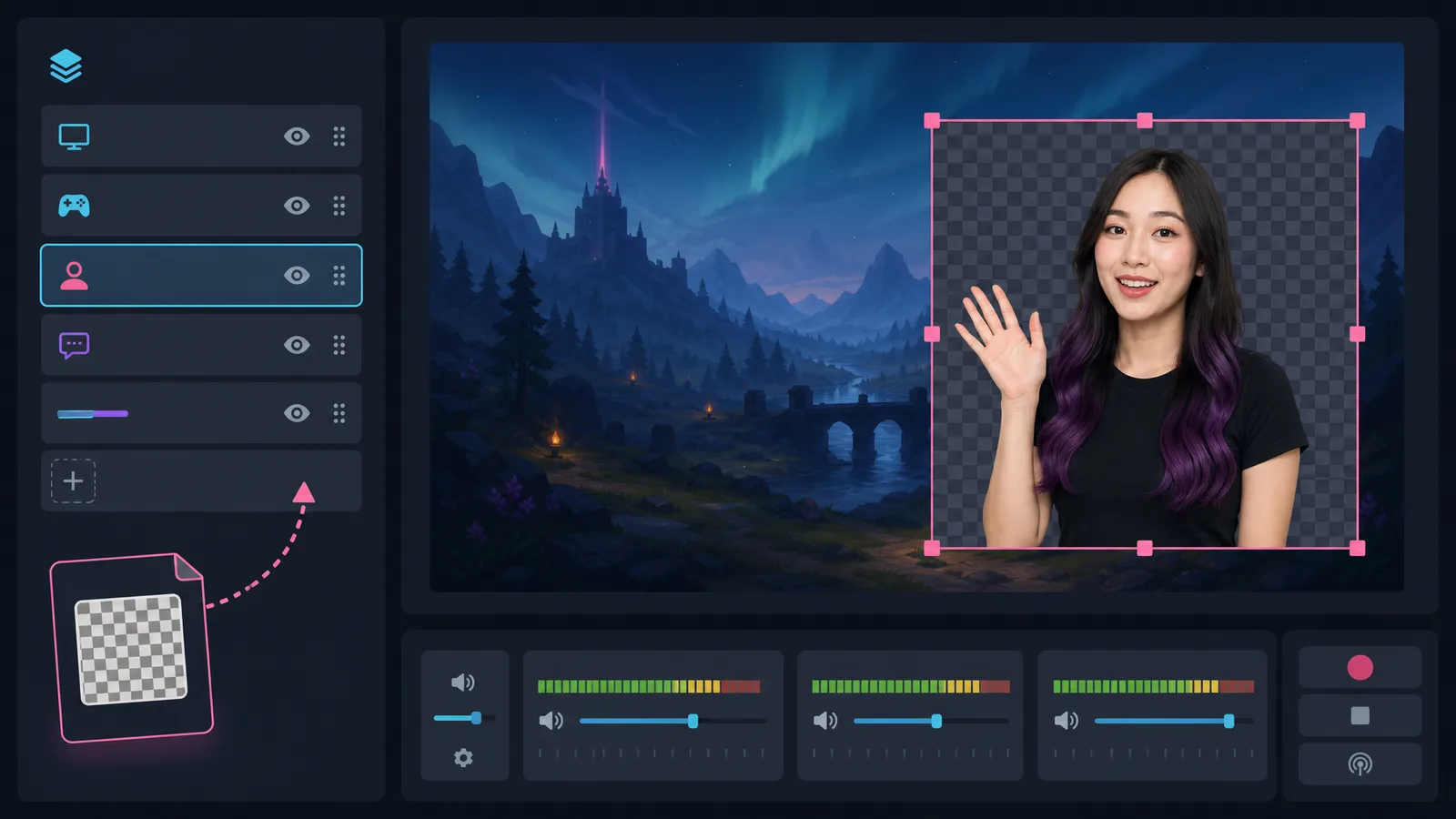
To be direct about the boundary: we do not do real-time removal. Nothing we make replaces the plugin during a live stream. We process recorded clips, overlay assets, and reusable intros; inspect the preview because edge quality varies with the source and model. Streamers who need both workflows can run the plugin live and process recorded assets separately.
Frequently asked questions
Does OBS have background removal built in?
Not as documented AI removal for an ordinary camera. OBS ships a Chroma Key filter that needs a physical key-color backdrop, commonly green or blue, and it also supports a custom key color. Removal without such a backdrop requires the obs-backgroundremoval plugin or an external processor such as NVIDIA Broadcast.
Why is the Background Removal filter not showing up in OBS?
Confirm that OBS was reopened and that the release matches your OBS version. On Windows, the verified DLL location is C:/ProgramData/obs-studio/plugins/obs-backgroundremoval/bin/64bit/obs-backgroundremoval.dll. The 1.5.0 prerelease requires OBS Studio 32 or later; if you use an earlier OBS version, do not select 1.5.0 and verify the compatibility of 1.4.1 with your exact installation.
Do I need an NVIDIA GPU for OBS background removal?
No. The plugin can run on CPU without a GPU. Hardware acceleration depends on the operating system and plugin build; CUDA appears only when the build includes the matching ONNX Runtime provider.
Does NVIDIA Broadcast work on a GTX card?
No. NVIDIA Broadcast 2.2.1 lists GeForce RTX 2060, Quadro RTX 3000, TITAN RTX or higher, Windows 10 64-bit, 8 GB RAM, and an R570-or-newer driver. GTX cards are not supported, and installation requires an internet connection.
Why does my OBS background removal flicker around the hair?
Because each frame is judged on its own, ambiguous pixels around hair change from frame to frame. Raise temporal smoothing first — it blends the mask across frames and usually calms the shimmer — then add a light behind you to separate your hair from the wall. Smoothing reduces flicker; it rarely removes it completely.
Is a green screen still better than AI background removal in OBS?
For edge quality, usually yes: an evenly lit green screen keyed with OBS's Chroma Key tends to give a cleaner edge than per-frame AI segmentation and is light on the CPU. AI removal wins on convenience, because you need no backdrop at all. For a permanent streaming setup where the edge matters, a green screen is still worth trying.
Can I get a transparent video file out of OBS?
Not from a live composite — OBS records the finished frame with the background already replaced. To get a file with a real alpha channel, record normally and matte the clip afterward with a tool that exports transparency.