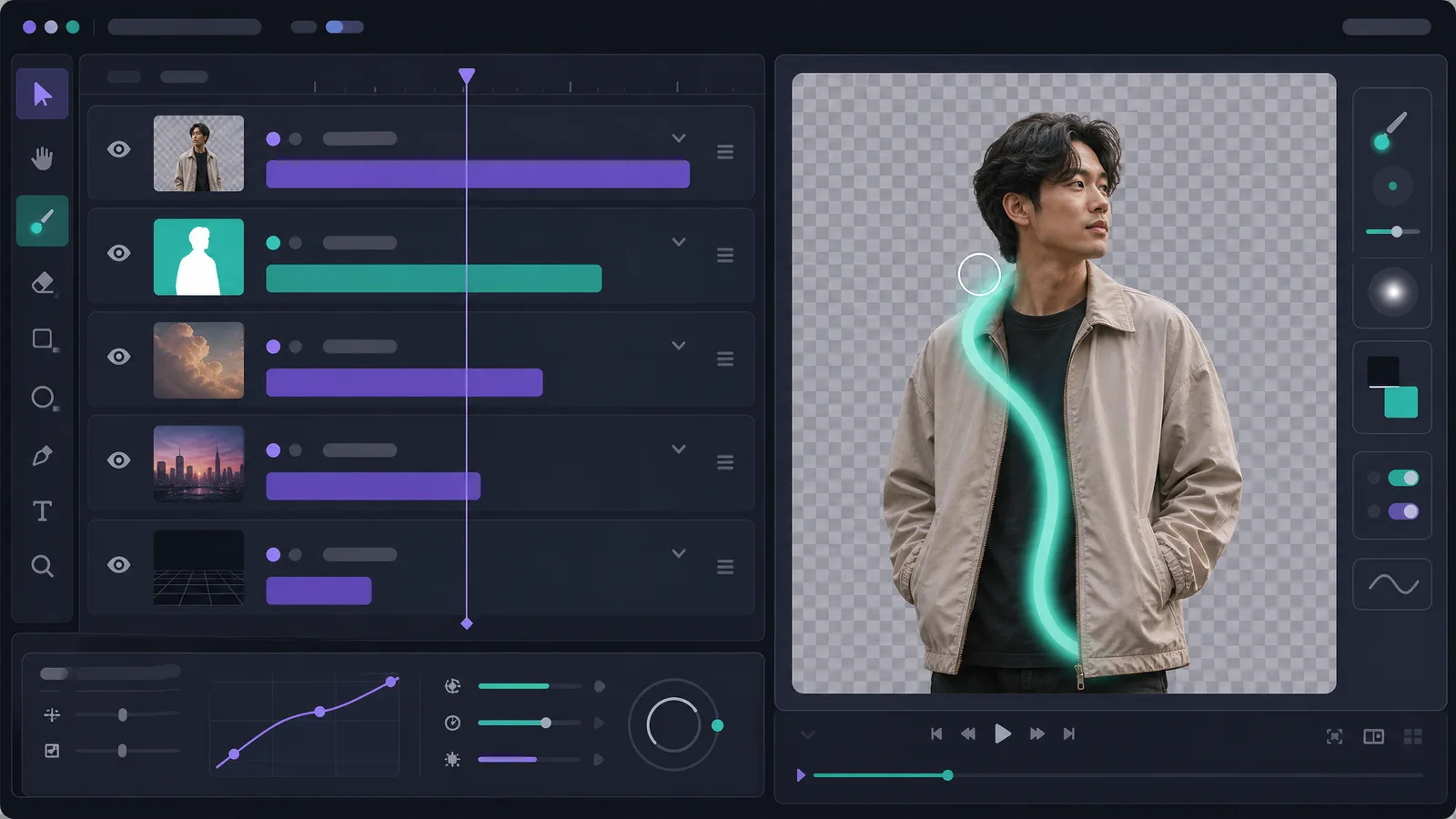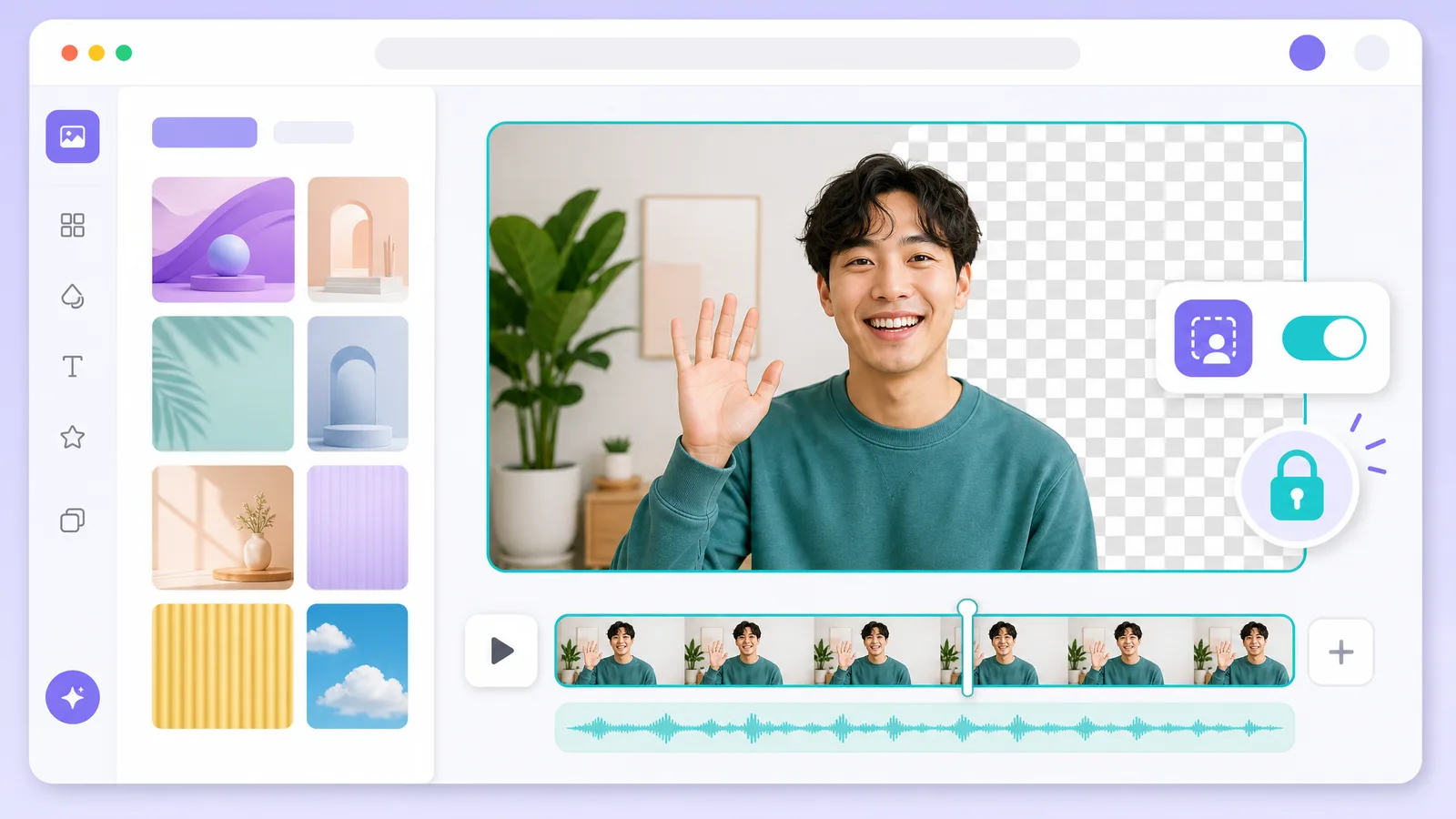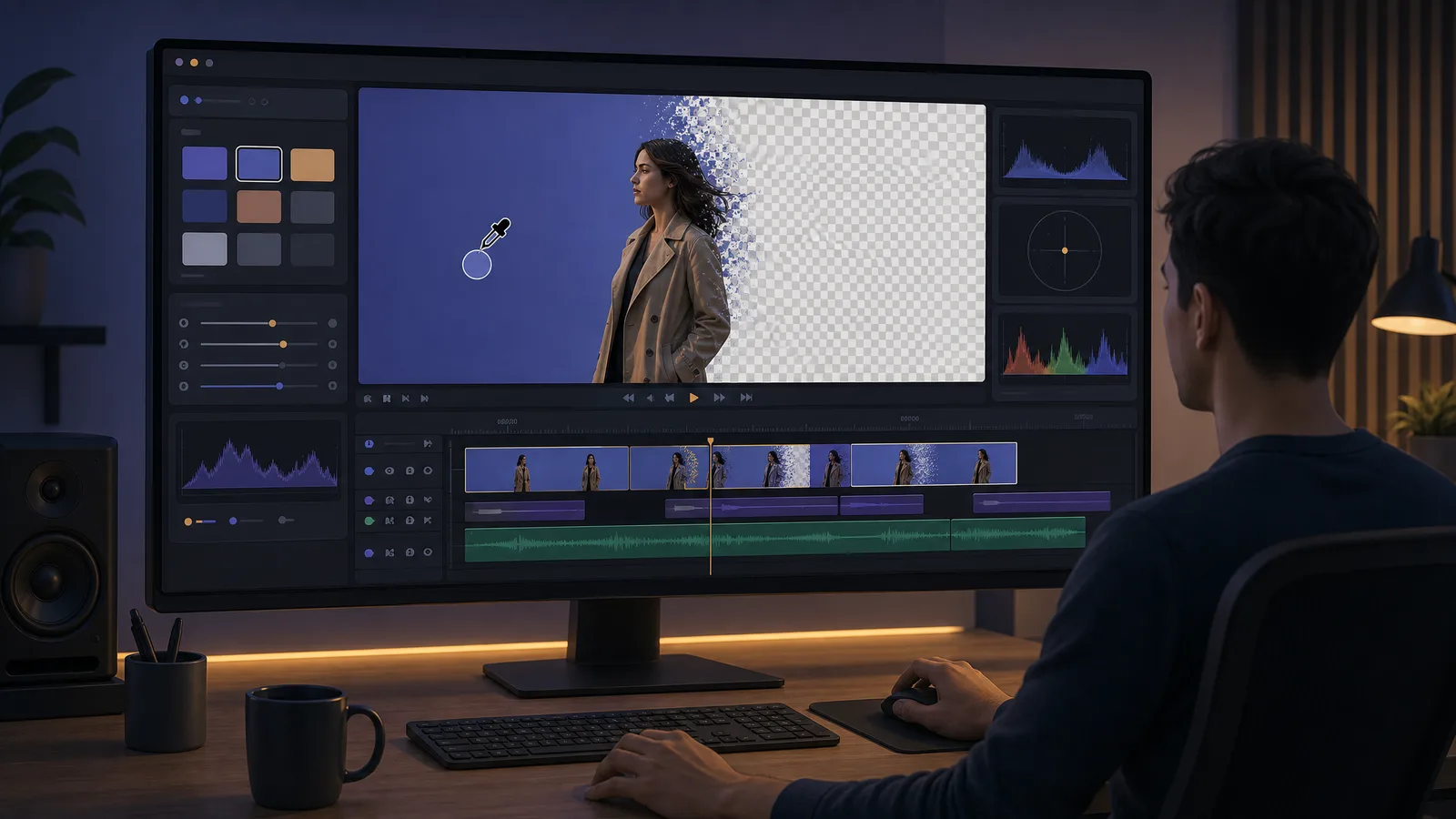
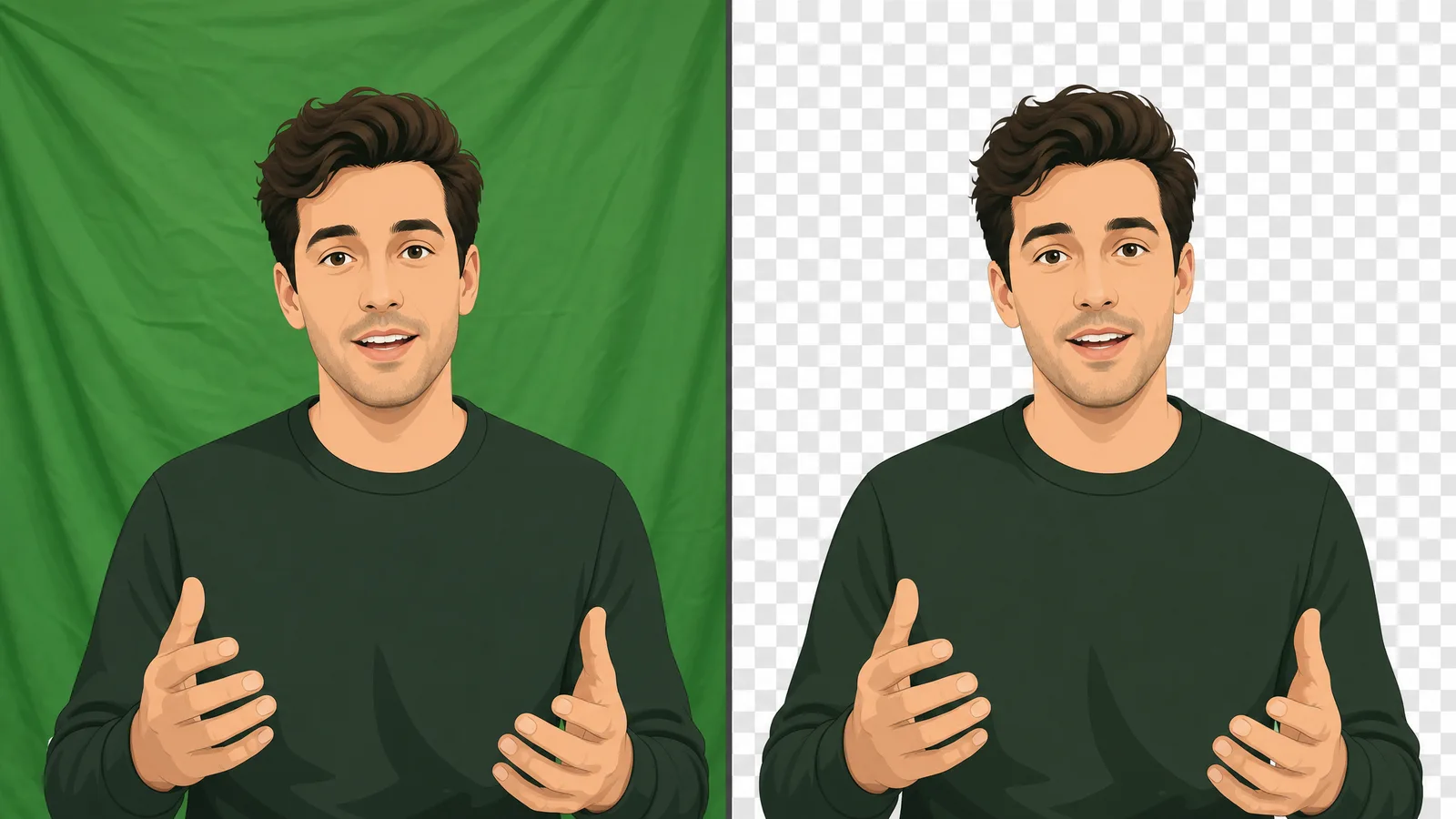
You shot in front of a green sheet — now you need that green gone and your subject sitting cleanly on a new background. Removing a green screen (a.k.a. chroma keying) used to mean fiddly keying sliders in pro software. Below you'll do it three ways: online in your browser with no software, or inside CapCut, Premiere Pro and DaVinci Resolve — and learn when an AI green screen remover beats manual keying for a clean, spill-free cut.
What is green screen (chroma key) removal?
Green screen removal — chroma keying — deletes a solid-color backdrop (usually green, sometimes blue) and makes it transparent, so you can drop your subject onto any new background. Green is used because it's the color furthest from human skin tones, so software can separate subject from background cleanly. The catch: a good key needs even lighting, no wrinkles, and no green spill on your subject — which is exactly where manual keying gets fussy.
Modern AI tools sidestep most of that: instead of you tuning tolerance and edge sliders, an video background remover detects the subject directly. If your footage has uneven lighting or no green screen at all, AI keying is far more forgiving.

See video background removal in action
Upload a clip and watch the background disappear — no green screen, no watermark, all in your browser.
Try it freeHow to remove a green screen online — no software
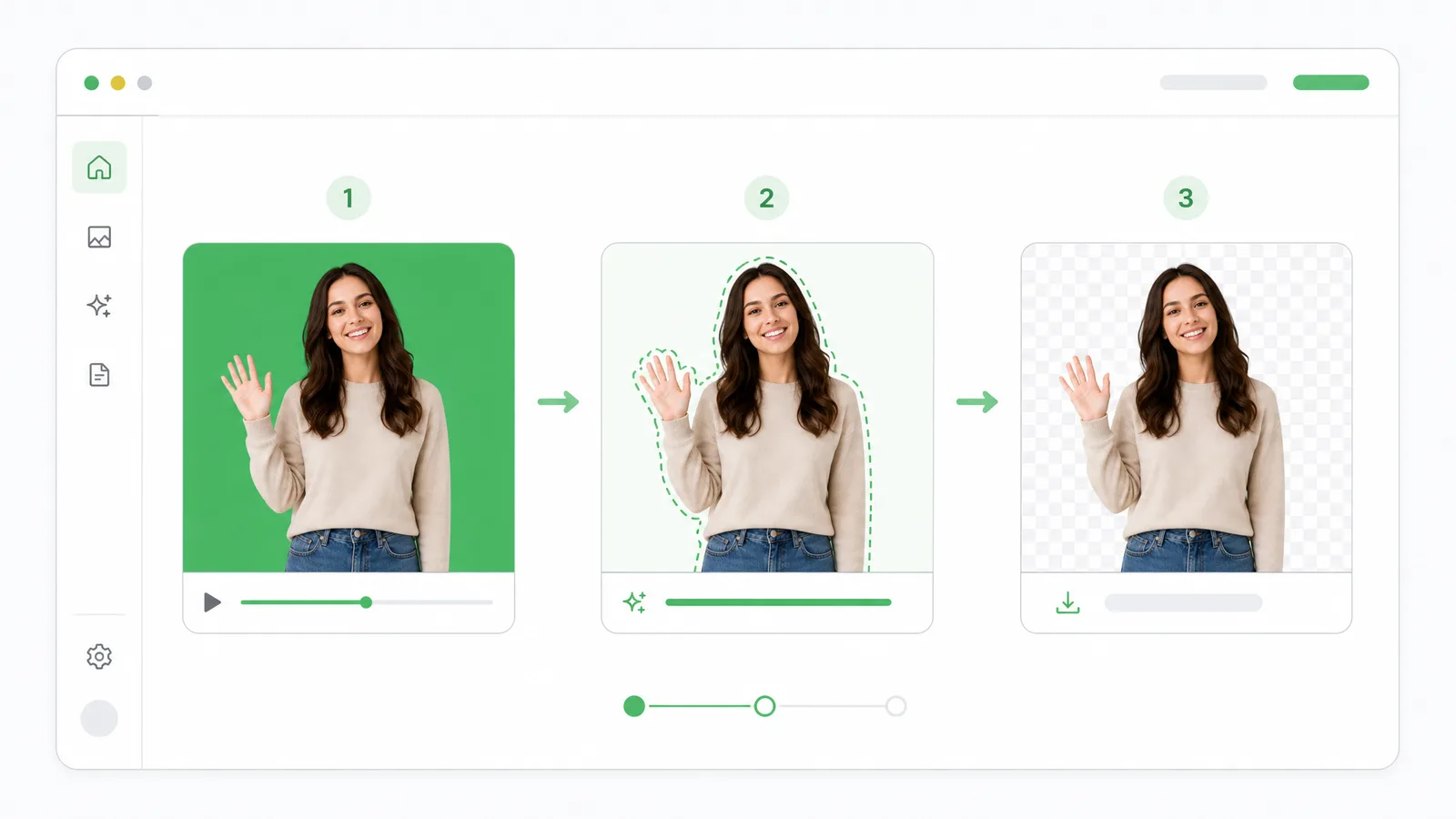
The fastest route needs no editor and no install — just a browser. On a green screen remover:
- Upload your clip — drag the green screen video in, all from your browser.
- Let the AI key out the green — it detects and removes the chroma background automatically, no tolerance sliders.
- Export — download a transparent WebM/MOV, or drop in a new background, with no watermark.
Because the AI keys on the subject rather than a single green value, it handles light green spill and imperfect, wrinkled backdrops that trip up manual chroma keys.
How to remove a green screen in CapCut
CapCut has a built-in chroma key tool:
- Add your green screen clip to the timeline and select it.
- Open Cutout → Chroma key.
- Pick the color picker and click the green area.
- Drag Intensity up until the green disappears, then nudge Shadow to clean the edges.
CapCut is free and fine for clean, evenly-lit green screens — but heavy spill or a creased backdrop often leaves a green fringe you'll fight with the intensity slider.
How to remove a green screen in Premiere Pro and DaVinci Resolve
In Premiere Pro, apply the Ultra Key effect to your clip, use the eyedropper to sample the green, then refine with Matte Generation and Matte Cleanup. In DaVinci Resolve, add a 3D Keyer node in the Color page, sample the green, and clean up with the matte and despill controls.
Both give you frame-level control — the trade-off is a learning curve, and you still need a well-lit green screen to get a clean key. For recorded clips where you just want a fast, clean cutout, an online tool is usually quicker.
Each of those keyers has more depth than one paragraph allows. The full walkthroughs: Ultra Key in Premiere Pro, Keylight and the Roto Brush in After Effects, and all three keying paths in DaVinci Resolve. If you're keying live rather than in an edit, OBS handles green screens natively with its Chroma Key filter.
Remove your video background now
Automatic, accurate cutouts in minutes. Start free — no install, no watermark.
Get startedOnline green screen remover vs editing software
All of these remove green — they differ in effort, cost, and how forgiving they are:
| Capability | Online AI remover | CapCut | Premiere / DaVinci |
|---|---|---|---|
| Needs a real green screen | ❌ (works without one) | ✅ | ✅ |
| Manual keying sliders | ❌ (automatic) | ✅ | ✅ |
| Handles spill / wrinkles | ✅ | ⚠️ (manual) | ⚠️ (manual) |
| Transparent export (WebM/MOV) | ✅ | ✅ | ✅ |
| No install | ✅ (browser) | ❌ | ❌ |
| No watermark | ✅ | ✅ | ✅ |
If you have a clean, well-lit green screen and live in an editor already, the built-in keyers work great. For no green screen, uneven light, or a fast clean cutout, an AI video background remover wins.
Shooting your own green screen? Light the backdrop separately from your subject and keep 1–2 meters between them. Even lighting and distance kill green spill before you ever touch a keyer — the single biggest factor in a clean key.
How to set up a green screen for a clean key
A clean key starts at the shoot, not in software — get the setup right and even a free keyer gives broadcast-clean edges. Four things make the biggest difference:
- Use a matte, wrinkle-free backdrop. Shiny or creased green fabric creates hotspots and shadows that confuse the keyer. A matte muslin sheet or a painted wall keys far cleaner than a crumpled bedsheet — and it's the single cheapest upgrade you can make.
- Light the background and subject separately. Put two soft lights on the green screen for even coverage, then light your subject with their own key light. An evenly-lit, single-shade green is an easy key; a screen with bright and dark patches forces you to widen the color tolerance, which eats into your subject's edges.
- Keep your distance. Stand 1.5–2 meters in front of the screen so green light doesn't bounce onto your shoulders, neck, and hair. That bounce is spill, and distance is the easiest way to kill it before it ever reaches the keyer.
- Avoid green and reflective clothing. Anything green on your subject — a lime shirt, a glossy jacket — gets keyed out too, punching transparent holes in them. Stick to colors far from green and avoid very shiny fabrics that reflect the backdrop.
Nail these four and the actual removal becomes trivial. Skip them and no slider, in any software, fully rescues a messy shoot.
How to fix green spill and jagged edges
Even a careful shoot can leave two classic problems. Green spill is a faint green rim on hair and shoulders — reduce it with the despill control (Premiere's Ultra Key, DaVinci's despill node, or CapCut's Shadow slider), or let an AI tool handle it automatically, since it keys on the subject rather than a single green value. Jagged or chewed-up edges usually mean the matte is too aggressive: back off the intensity (or "clip black") until the edge softens, then feather it 1–2 pixels so it blends into the new background.
Fine, flyaway hair is the hardest part of any key — a hard chroma key on weaker, compressed footage tends to either cut it off or leave a green halo. AI matting generally preserves hair detail better on everyday clips, which is why a green screen remover often looks cleaner on footage that wasn't shot in a studio.
When to use a green screen vs AI removal
A real green screen still wins for fast motion, fine hair detail, and broadcast work — a well-lit chroma key has decades of refinement behind it and holds up under scrutiny. The cost is space, lights, and setup time you don't always have.
AI removal wins when you shot without a screen, your lighting is uneven, you're cleaning up recorded clips, or you just need a quick, clean cutout with no gear. Many creators use both: a green screen for planned studio shoots, and an AI video background remover for anything filmed on location, at a desk, or on a phone. You don't have to commit up front — run your clip through an automatic remover first and only set up lights if you actually need that extra edge.
Where creators remove green screens
Green screen removal shows up across almost every kind of video, and the right approach shifts with the use case:
- YouTube videos and tutorials — float yourself over a slide deck, a screen recording, or a branded scene instead of your real room, so the focus stays on the content.
- Product and e-commerce clips — drop a product demo onto a clean studio or lifestyle background that matches the brand, without renting a set.
- Social and UGC — quick vertical clips where a swapped or fully removed background reads as far more polished than a cluttered bedroom behind the creator.
- Streaming and webcam — replace a live background on calls, though for recorded clips an AI remover gives a noticeably cleaner edge than most real-time webcam filters.
- Education and training — overlay a presenter onto diagrams, maps, or B-roll so the explanation and the visual sit in the same frame.
In every one of these, the goal is identical: separate the subject cleanly so it sits naturally on a new background. A studio green screen does that with gear and lighting; an AI video background remover does it with software and no setup. For most recorded clips, the fastest route to a clean result is to upload to a green screen remover, let it key the background automatically, and export a transparent file you can drop onto anything.
Green screen vs blue screen: which should you use
Green is the default, but blue screens still have their place — the choice comes down to your subject and lighting. Green reflects more light and needs less of it to expose, so it's easier to light on a budget and keys cleanly on most cameras, which is why it dominates online video. The downside is green spill on light hair and anything green your subject wears. Blue is darker and needs more light, but it spills less, handles fine detail and motion blur better, and is the choice when your subject wears green or for film-style work. A practical rule: shoot green for everyday talking-head and product clips, blue when wardrobe or fine edges fight a green key. Either way, an AI green screen remover keys both without you tuning a single slider.
What to do after you remove the green screen
Keying out the green is only half the job — what you put behind your subject is the other half. You have two paths. Export transparent if you'll composite later: save a transparent WebM or MOV with an alpha channel, and drop your subject onto any scene in your editor. Replace the background now if you want a finished clip: change the background to a brand scene, an office, or a gradient in one step. Whichever you pick, match the new background's lighting and perspective to your footage so the composite reads as real — a brightly lit subject on a dark scene always looks pasted on. Keep edges soft, and a slight blur on the background hides any imperfect hairline.
How to fix a green screen that won't key cleanly
If the green won't key out cleanly, the cause is almost always in the footage, not the tool. Run through these in order. Uneven lighting is the top culprit — bright and dark patches on the screen force a wider color tolerance that eats into your edges, so even out the backdrop lighting first. Wrinkles and shadows create darker green that keys as a different color; pull the screen taut and light it flat. Spill on the subject means they're standing too close to the screen — move them forward a meter or two. Compression on phone or webcam footage breaks up fine edges, so shoot at the highest quality you can. If you've checked all four and a manual keyer still fights you, an AI green screen remover keys on the subject rather than the color, which sidesteps most of these problems at once.
FAQ
How do I remove a green screen from a video for free?
Upload your clip to an online green screen remover, let it key out the green automatically, and export a transparent or replaced background — no install and no watermark. Free editors like CapCut and DaVinci Resolve also have built-in chroma key tools if you prefer to key manually.
Can I remove a green screen without a green screen?
Yes. AI background removers key on the subject, not a green color, so they remove or replace the background even when you never used a green screen. A real green screen still gives the cleanest edges, but it's no longer required.
Why is there a green outline left after keying?
That's green spill — light bouncing off the screen onto your subject. Reduce it by lighting the backdrop separately and adding distance, or use the despill/shadow controls in your keyer. AI removers handle most spill automatically.
What's the difference between green screen and chroma key?
They're the same idea: chroma key is the technique of removing a solid color, and green screen is the most common color used because it's furthest from skin tones. Blue screens are sometimes used when the subject contains green.
How do I remove a green screen in CapCut?
Select your clip, open Cutout → Chroma key, use the color picker on the green, then raise Intensity until the green disappears and adjust Shadow to clean the edges. It works best on evenly-lit, wrinkle-free backdrops.
What format should I export for a transparent background?
Export WebM (VP9 with alpha) for web use, or MOV (ProRes 4444) for editing. Both keep the transparent background; a plain MP4 cannot store transparency and will fill it with black.