Video Background Remover

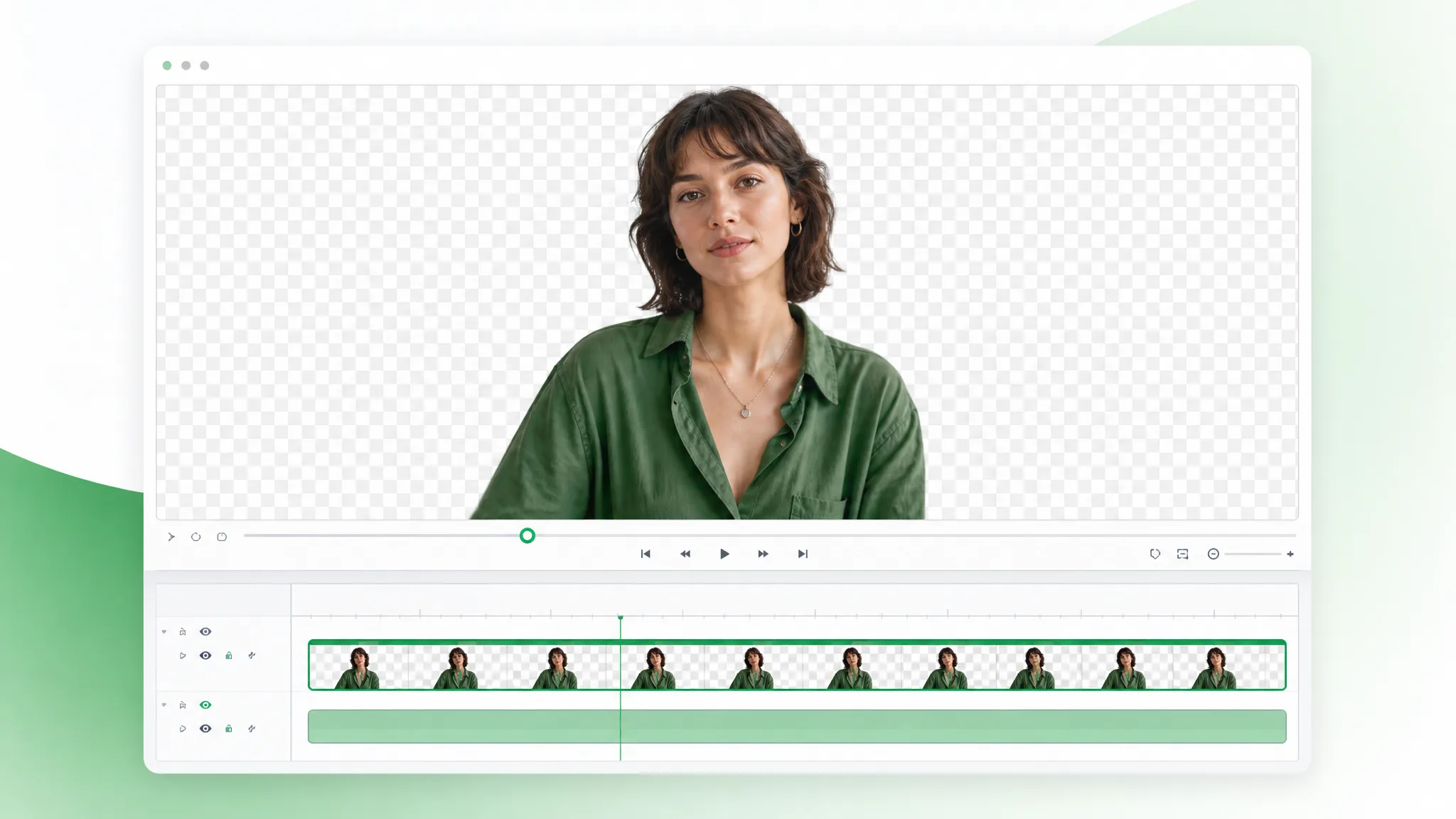
Give your presenter, product or character a new setting. Remove background from video online, keep a transparent layer or choose a fresh backdrop, and prepare a clip for your next post, lesson or campaign.

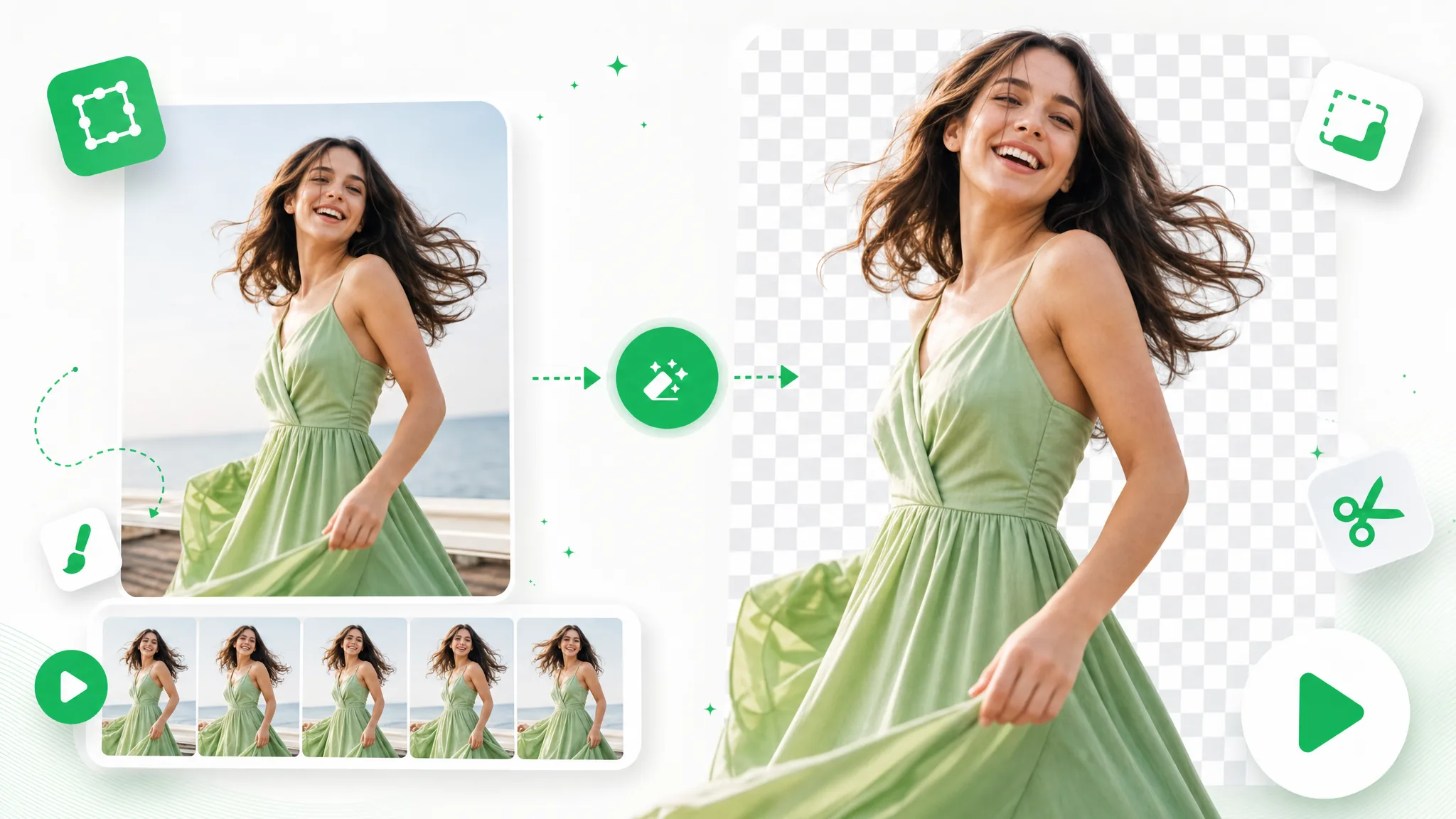
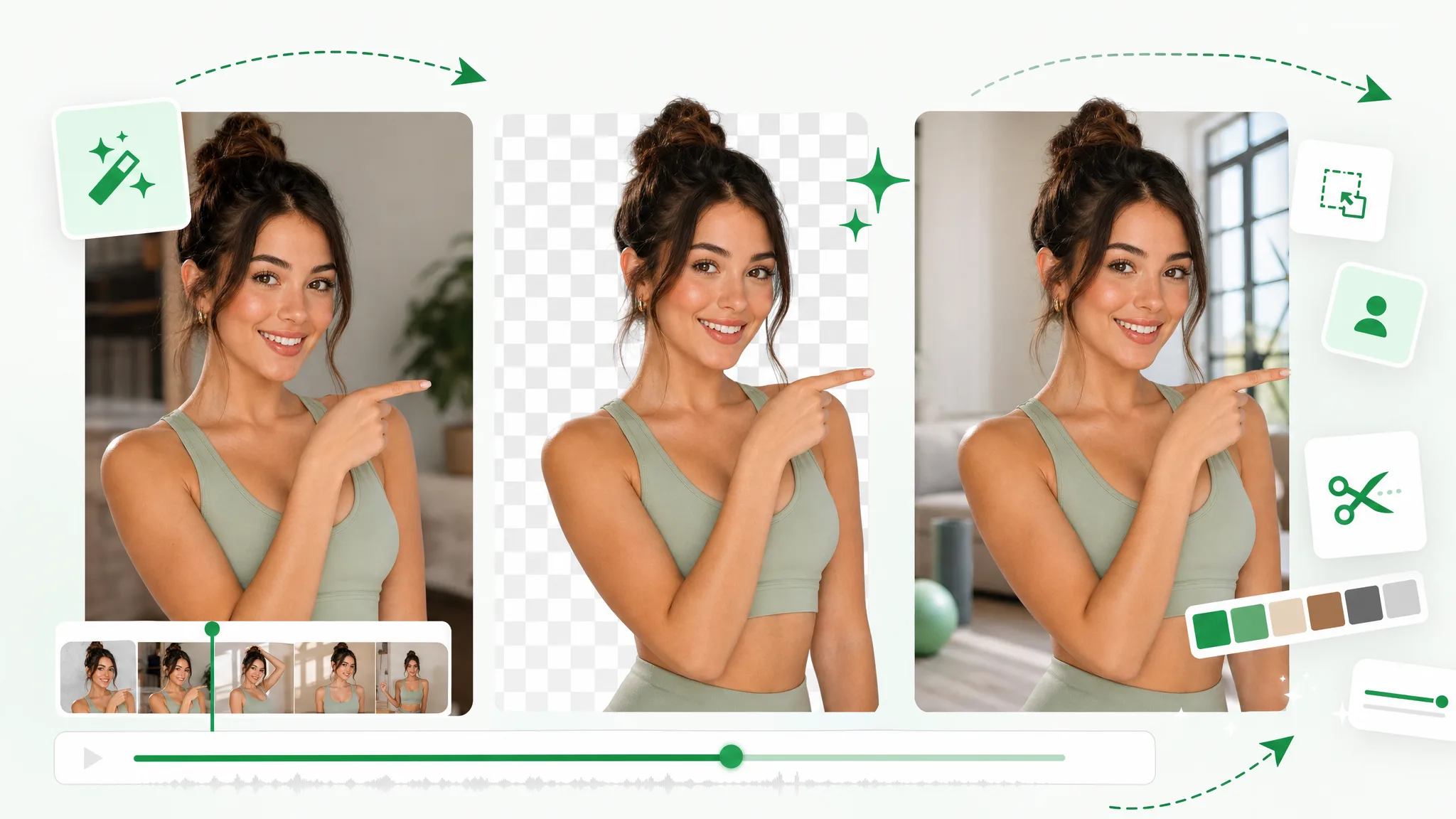
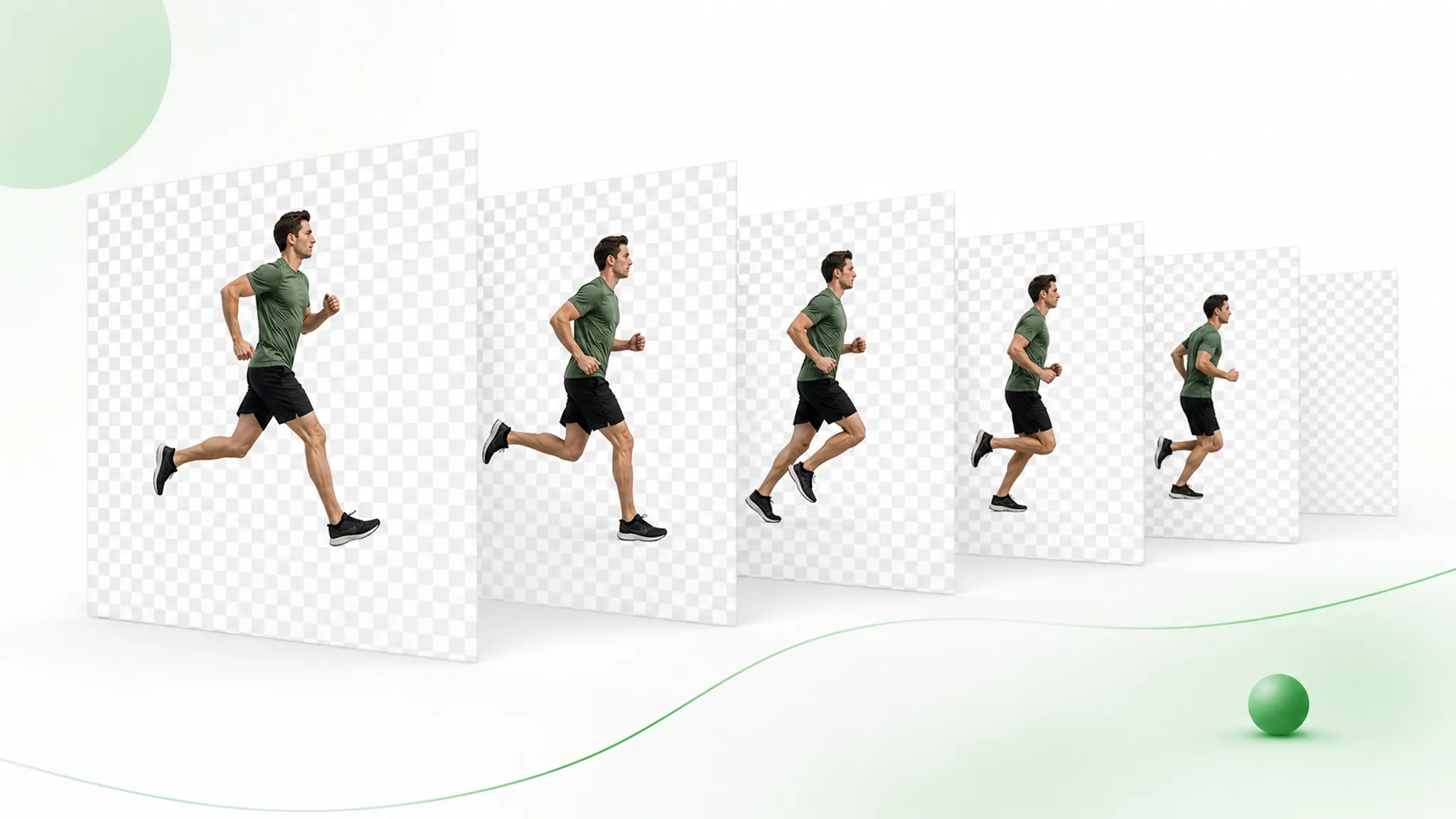
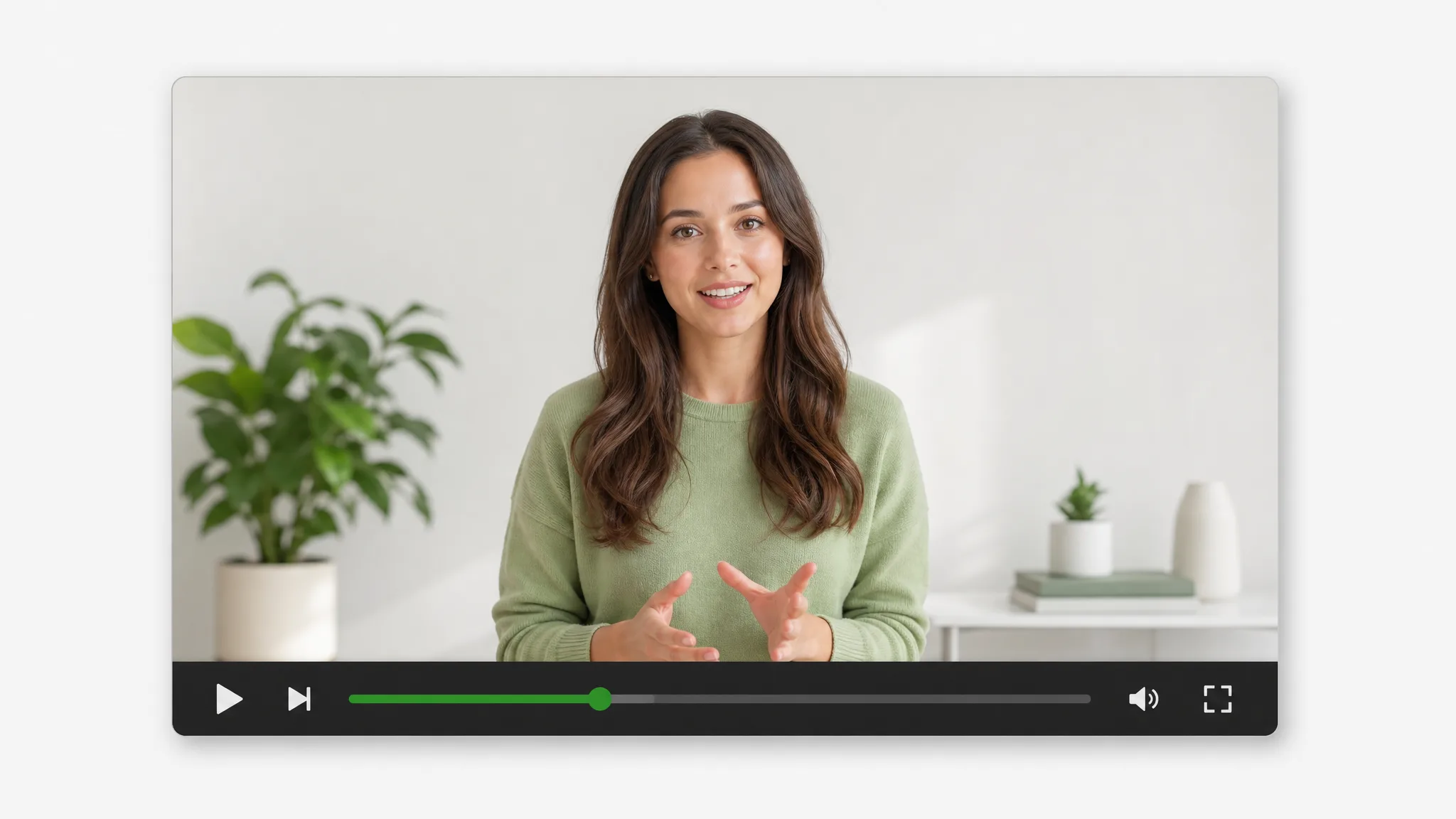
Video background remover turning an original clip into a clean transparent cutout and a new background
or drop a file hereMP4, MOV, WebM · Max 180s · up to 4K · 100MB
No video? Try one of these:
Free to try
  • No watermark
  • Clean alpha export
  • 4Kquality
  • Long video

See it in action

See a video background remover change the scene

Explore the original footage and its background-removed example side by side. From a talking-head introduction to a moving character, see how the subject can become a separate element in a new composition.

BeforeAfter

Creators & vloggers

A presenter prepared as a separate subject for another scene.

BeforeAfter

Sports & action

An action example showing the subject against a changed background.

BeforeAfter

3D character animation

An animated character shown separately from its original setting.

BeforeAfter

Game & VFX creatures

A stylized creature prepared for a layered composition.

BeforeAfter

Social UGC & hauls

A creator and product example with the background removed.

BeforeAfter

AI & CGI footage

An animated scene element prepared for a new background.

BeforeAfter

Creators & vloggers

A presenter prepared as a separate subject for another scene.

BeforeAfter

Sports & action

An action example showing the subject against a changed background.

BeforeAfter

3D character animation

An animated character shown separately from its original setting.

BeforeAfter

Game & VFX creatures

A stylized creature prepared for a layered composition.

BeforeAfter

Social UGC & hauls

A creator and product example with the background removed.

BeforeAfter

AI & CGI footage

An animated scene element prepared for a new background.

Features

Make one recording work in more places

A transparent layer for your next composition

A presenter can sit beside your slides, a product can appear over campaign artwork, and an animated character can become part of a page design. Use the video background remover to prepare a transparent WebM, then place it over a new scene in a compatible editor or website. For frame-by-frame image work, the PNG sequence tool gives you a separate path from video to editable stills.

Create a Transparent Clip
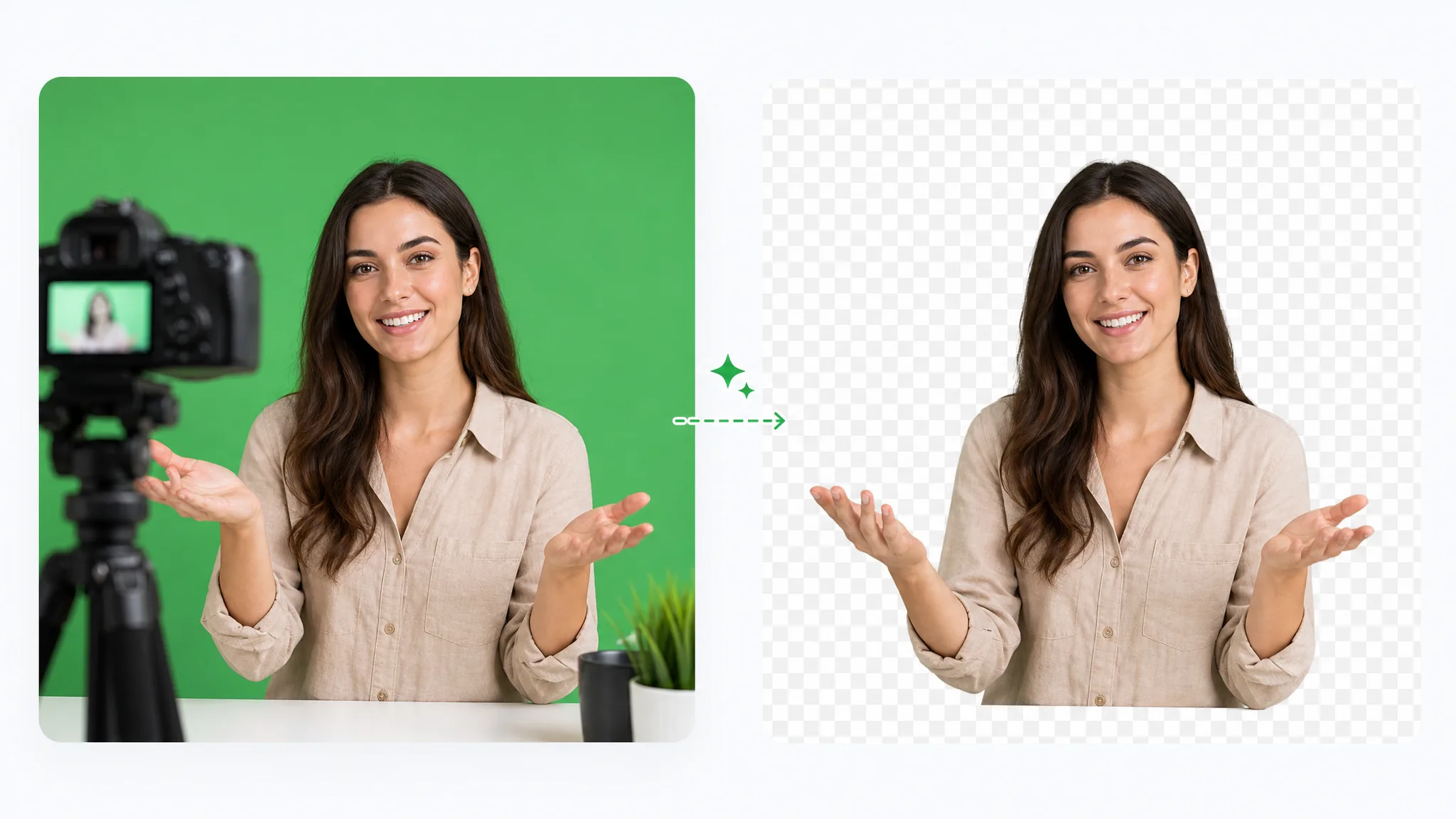
E-commerce product video with its background removed, showing a clean transparent alpha cutout of the model.

Start with the footage you already have

Give a recorded introduction or demonstration another use. Upload your clip and remove background from video automatically, bringing the subject forward without building masks around every frame yourself. This makes an ordinary recording a useful starting point for a lesson, a product explanation or a new creative composition. The preview lets you choose the section and presentation that fit the project you are making.

Use Your Own Footage
Fitness influencer video with the background removed automatically from ordinary footage.

Carry your brand into the background

Prepare a transparent subject for your brand design. Add campaign artwork in a compatible editor, or use the change video background tool to combine the recording with an image.

Choose a New Setting
Creator video with its background swapped for a brand-new scene after automatic background removal.

Build the right workflow around your clip

A short facecam, a collection of product recordings and a longer lesson each benefit from a different workflow. Begin with this video background remover for a single clip, or follow the related tools for batch work, long-video processing and image sequences. Keep the recording as the common source and prepare the version that belongs in your next social post, course or project page.

Prepare Your Next Clip
Educator presentation video with the background removed for a clean, long-form lesson.

Why choose us

A practical starting point for your video ideas

Create a reusable subject layer and choose where it belongs next, with video background removal and related tools in one browser workflow.

Bring the subject forward

Separate the person, product or character from the original setting and give the main subject a clear place in your next design.

Transparent when you need layers

Export a transparent WebM to place your video subject over another background in a compatible website or editor.

A clean presentation

Prepare watermark-free video for your own compositions and use the output choices available for your clip.

Dedicated workflows for longer material

Use the long-video tool when your lesson or presentation calls for a workflow beyond a short clip.

A background that fits the project

Prepare your subject here, then arrange it with your campaign or lesson background in a compatible editor.

Work from your browser

Upload, process, preview and download in the same workflow, then continue creating in the tools you already use.

How it works

How to remove background from video

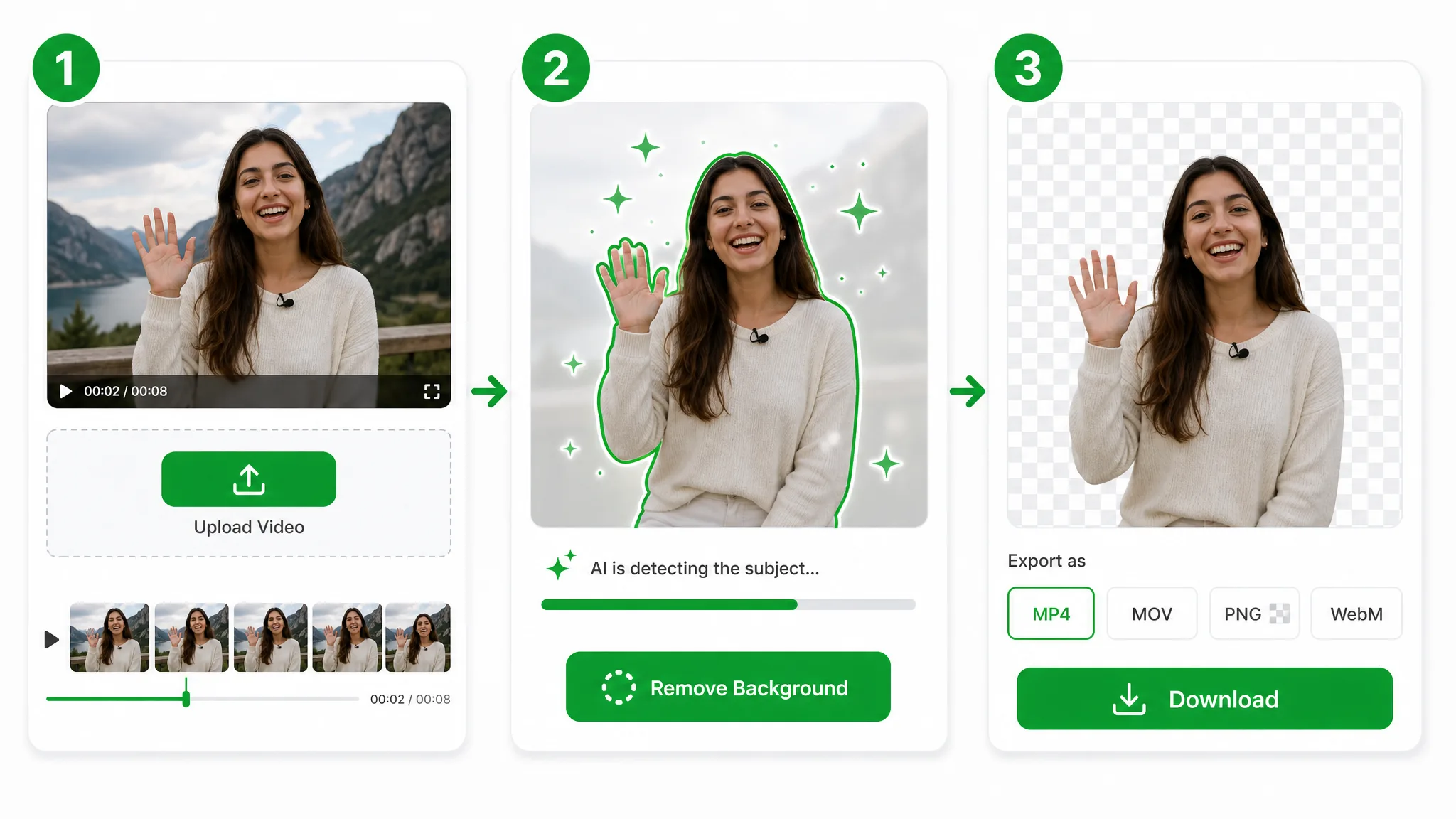
Start with an existing recording and finish with a clip you can use in a new composition. These three steps connect the source footage, the background choice and the result.

Three-step background removal: upload the clip, the AI cuts out the subject, then download the transparent result.
  1. 1

    Upload your source clip

    Choose a video from your device or open one of the sample clips. Start with the presenter, product or character you want to feature, and use a section that belongs in the post, lesson or composition you are preparing.

  2. 2

    Choose the setting and start processing

    Choose an available background option and start processing.

  3. 3

    Preview and download your result

    Play the processed video and choose the export that fits the next step of your project. Use a transparent WebM as a layer, or take a finished background version into your editor to add titles, captions and the rest of the story.

Export formats

Choose the output for your next step

Use transparent video for layering, images for frame-based work, or a new-background video for the next edit. Each format serves a different part of a video background removal workflow.

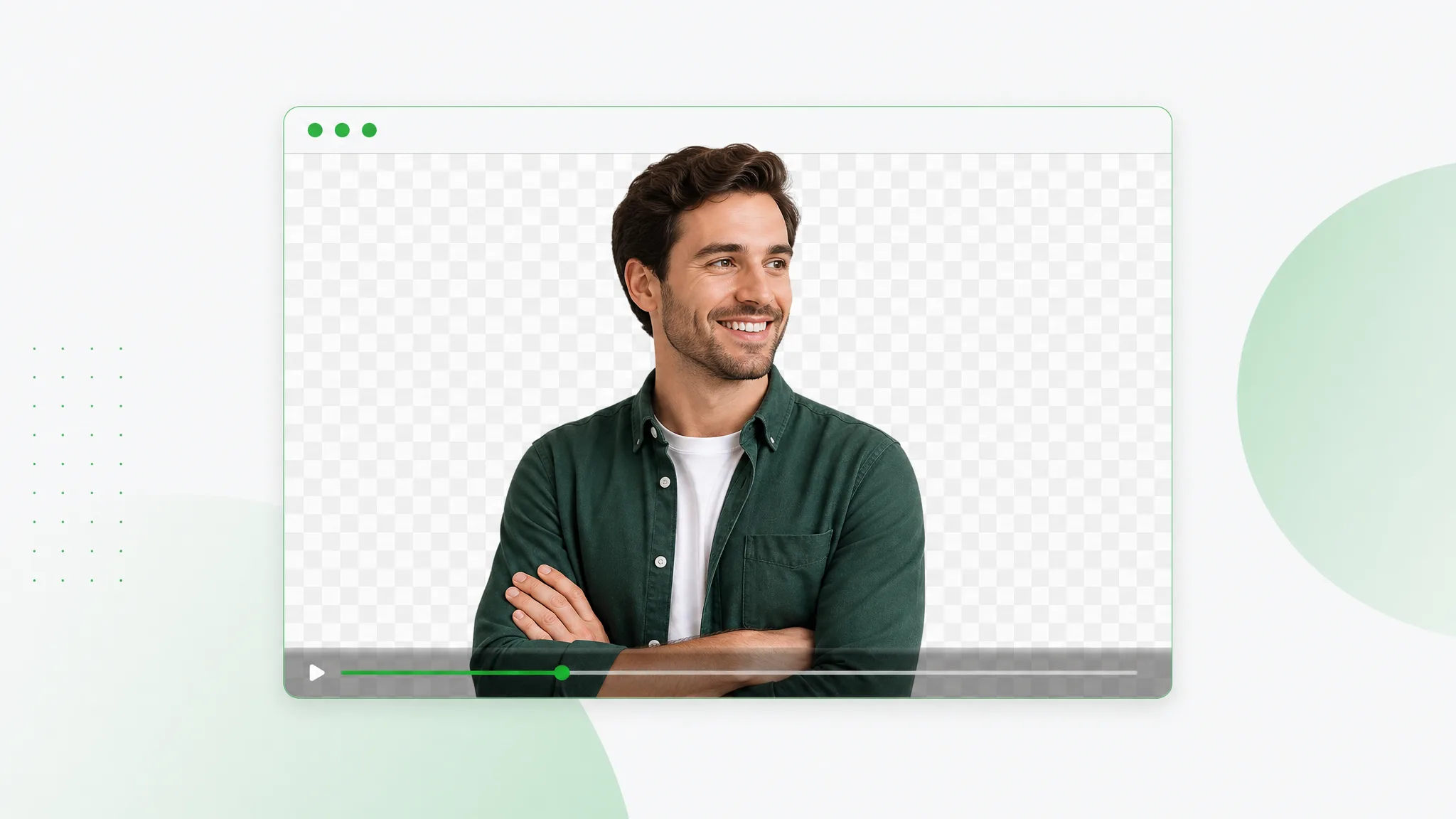
Transparent WebM video preview shown on an alpha checkerboard inside a browser window.Transparent

WebM

A transparent video layer for compatible websites, overlays and editors.

Professional MOV or ProRes video preview shown inside a video editor timeline for editor-first export workflows.Pro

ProRes (MOV)

An editing-oriented MOV output with the solid background selected for the clip.

PNG sequence of transparent frames on an alpha checkerboard for frame-by-frame compositing.Transparent

PNG Sequence

Editable transparent stills through the dedicated PNG sequence workflow.

Standard MP4 video preview with a new background baked in, shown in a video player.New BG

MP4

Video with your selected solid-color background.

Use cases

Where video background removal fits your work

Start with a recording you already have and shape it for a particular audience. These four examples connect the source clip to a useful place in your creative workflow.

Product explainers for your store

Put a product demonstration against a brand color or campaign image. Keep the product and presenter together in the recording, then use the new-background clip in a listing video, a launch page or a social promotion.


Product video with its background removed and placed on a clean custom backdrop for an online store listing.

Creator clips for social stories

Turn a recorded introduction or reaction into a separate subject layer. Place it over your own design in an editor and add the captions, framing and finishing touches that belong to the story you want to share.

Creator cut out from their video as a transparent overlay for a vertical Reels, Shorts, or TikTok clip.

Facecam layers for stream graphics

Prepare a recorded facecam as transparent video for a stream introduction, highlight edit or channel trailer. Arrange the speaker alongside gameplay and graphics in your editor, keeping the scene composition under your control.

Streamer facecam with the background removed, ready to overlay on gameplay.

A presenter beside the lesson

Remove the room from a recorded explanation and place the teacher beside slides, diagrams or a worked example. Reuse the presenter layer across lesson sections while the teaching material changes around it.

Educator cut out from their video and placed over slides for an online course or tutorial.

Creator stories & examples

A new setting for every story

“The tiny ceramic birds were the whole point of our spring collection. I used the video background remover on a clip of my colleague holding one, then placed the transparent subject over our illustrated garden in the editor. The finished post brought the real object and the collection artwork into the same scene.”

Clara V.Clara V.Social Media Producer

FAQ

Video background remover questions, answered

A video background remover separates the main subject from its original setting. You can keep the subject as a transparent video layer or place it against a different background. This makes a recorded presenter, product or character useful in a new composition rather than tying the clip to the room or scene where it began.

Give your next video a new setting

Start with a presenter, product or character clip. Use the video background remover to create a transparent layer or choose a new backdrop for the post, lesson or campaign you are making.

Upload Your Video

As featured on: