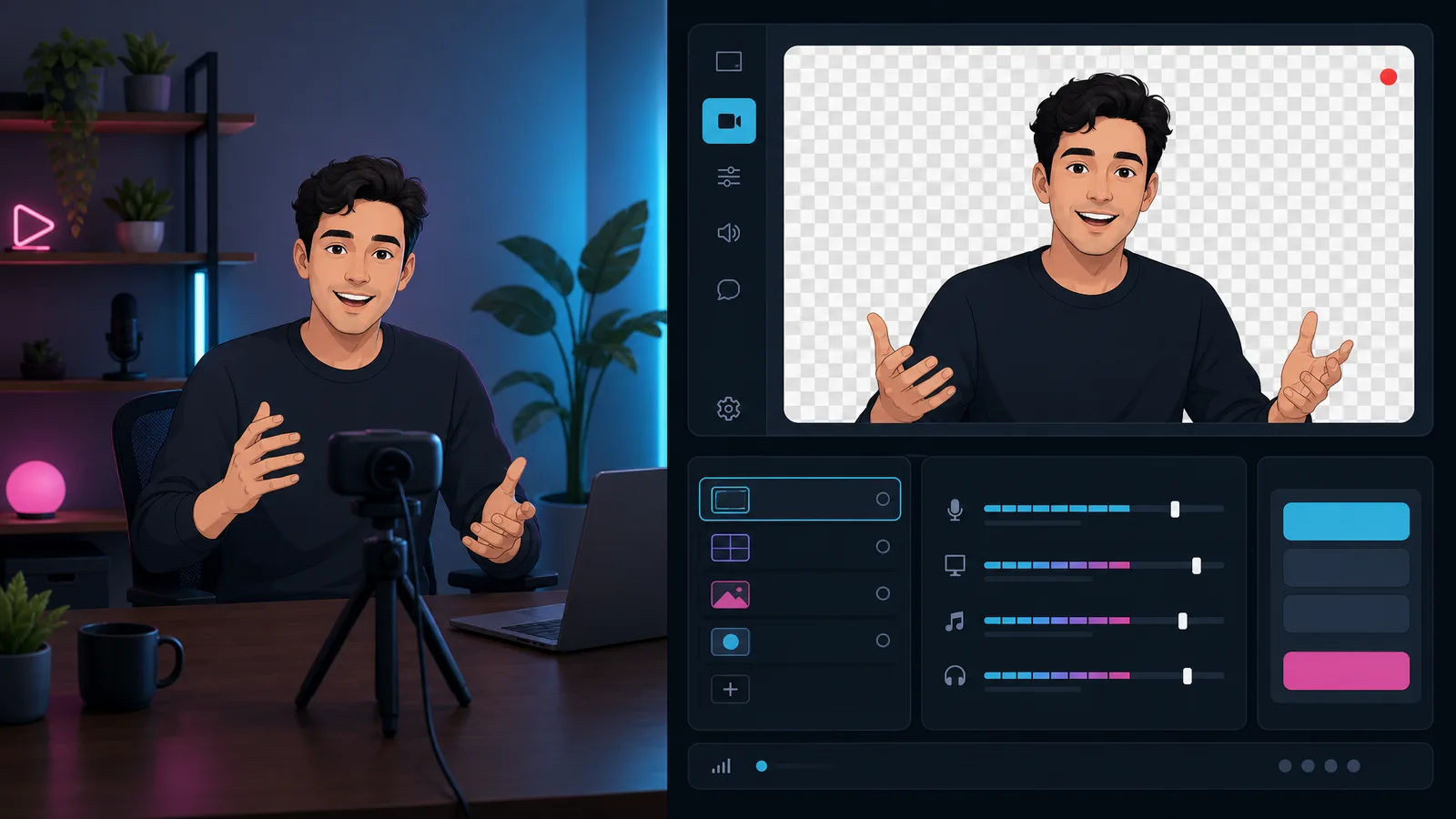
You removed the background — now you need to save it so the transparency actually survives. Export to the wrong format and your clean cutout gets a solid black box behind it. A transparent video keeps an alpha channel, so your subject can sit on any background in another edit. Below you'll make a video background transparent online, pick the right export format (WebM, MOV/ProRes, or PNG sequence), and avoid the #1 mistake that flattens transparency.
What is a transparent video?
A transparent video stores an alpha channel — a per-pixel transparency map — alongside the color, so wherever the background used to be, the video is see-through instead of a color. Drop it into another project and your subject composites straight onto the new scene, no keying needed.
The crucial part: not every format supports alpha. MP4 (H.264) — the default everywhere — cannot store transparency and will fill it with black. To keep a transparent background you must export a format that carries alpha, which is what the rest of this guide covers. The fastest way to get one is an online video background remover that outputs alpha directly.

See video background removal in action
Upload a clip and watch the background disappear — no green screen, no watermark, all in your browser.
Try it freeHow to make a video background transparent online
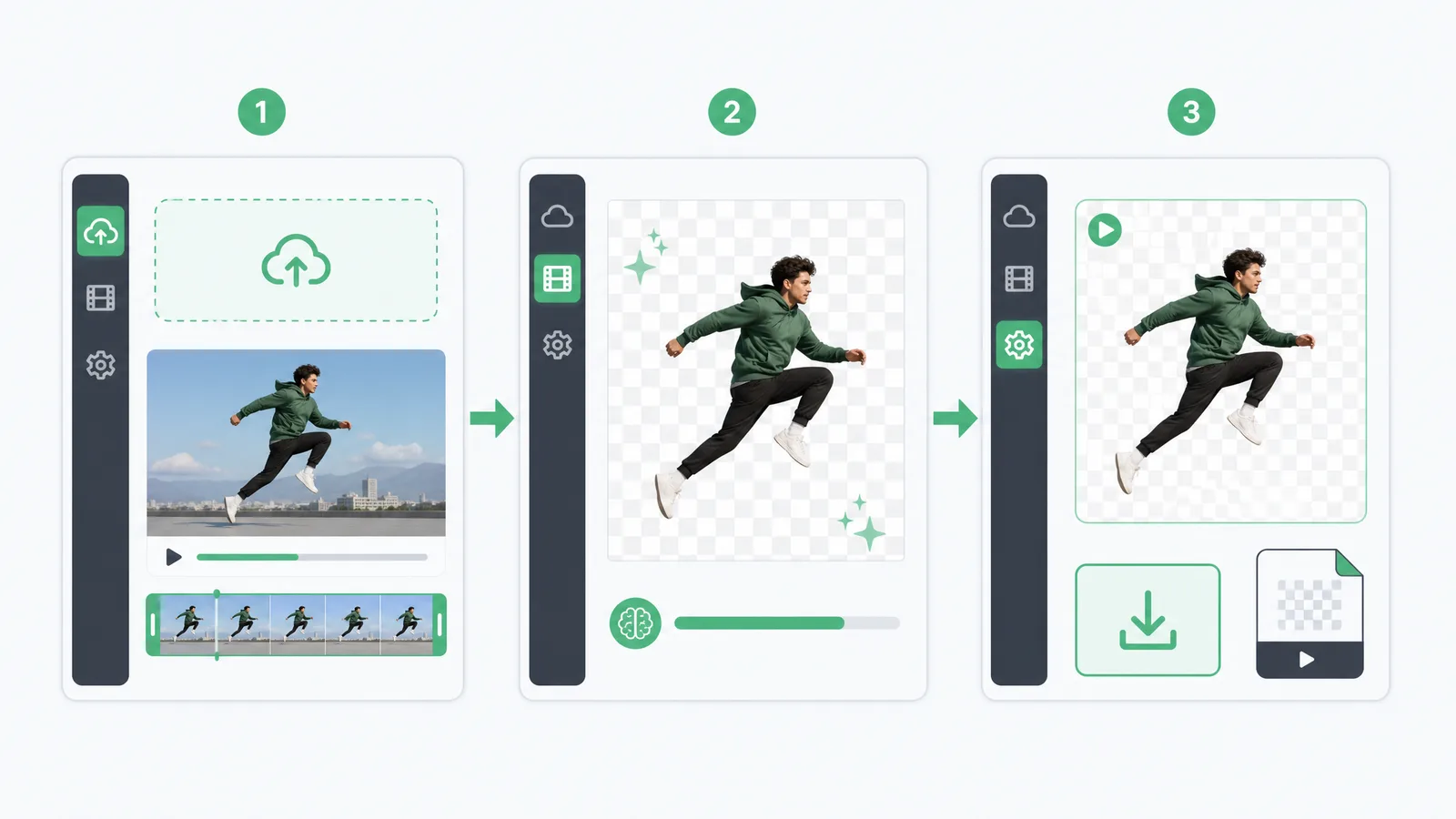
No editor, no install — a transparent video maker does it in three steps:
- Upload your video — drag it into the browser tool.
- Remove the background — the AI cuts out the background and builds a real alpha channel automatically.
- Export WebM or MOV — download with transparency preserved and no watermark.
Because it writes the alpha channel for you, you skip the manual keying and codec guesswork — you get a file that's already transparent and ready to drop into any timeline.
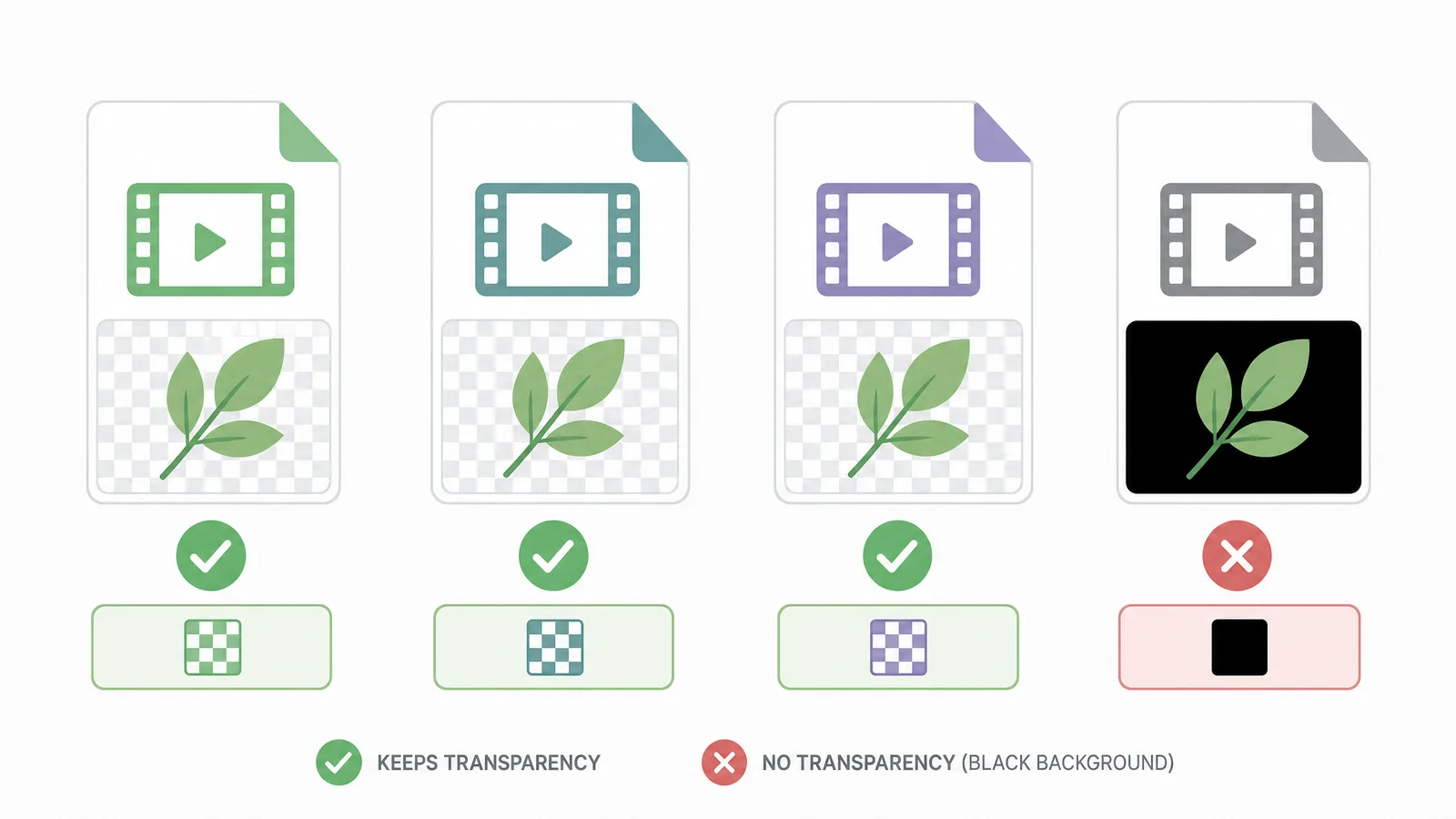
Which format keeps transparency? WebM, MOV/ProRes, PNG sequence
Transparency lives or dies by the export format. Here's what actually carries an alpha channel:
| Format | Alpha (transparency) | Best for | Notes |
|---|---|---|---|
| WebM (VP9) | ✅ | Web, browsers, overlays | Small files, plays in HTML5 video |
| MOV (ProRes 4444) | ✅ | Editing (Premiere, Final Cut, Resolve) | Large but highest quality |
| PNG sequence | ✅ | Maximum compatibility / VFX | One transparent frame per file |
| MOV (Animation/PNG codec) | ✅ | Older editors | Larger than ProRes |
| GIF | ⚠️ (1-bit only) | Simple loops | Hard edges, no soft transparency |
| MP4 (H.264) | ❌ | — | Cannot store alpha — fills with black |
Rule of thumb: WebM for the web, ProRes MOV for editing, PNG sequence when you need it everywhere. Pick MP4 and you lose the transparency you just made.
Remove your video background now
Automatic, accurate cutouts in minutes. Start free — no install, no watermark.
Get startedHow to export transparent video in After Effects and Premiere
In After Effects, go to Composition → Add to Render Queue, set Output Module → Channels: RGB + Alpha, and choose QuickTime → ProRes 4444 (or PNG sequence). In Premiere Pro, export QuickTime with the ProRes 4444 codec and Render at Maximum Depth so the alpha is written.
The common trap is leaving Channels on RGB — that throws away the alpha even with a ProRes codec. Always set RGB + Alpha. For recorded clips where you just need a fast transparent export, an online tool skips these settings entirely.
Where transparent video is used
Transparent clips are the building blocks for layered video: animated logos and lower-thirds, product shots dropped onto branded scenes, talking-head overlays for tutorials and UGC, and motion graphics composited into bigger edits. Anywhere you need a subject to float on top of other footage, you need a transparent background — not a green one.
Not every project needs full transparency, though. If you only want the room behind you to stop competing for attention — a recorded meeting, a webinar, a course intro — blurring the background is the simpler call: it keeps a normal MP4, plays anywhere with no alpha-channel worries, and skips every format trap below. Reach for a transparent export only when the subject actually has to sit on another layer.
Before a big export, do a 2-second test render and drop it onto a bright-colored background in your editor. If you see a black box, transparency wasn't written — check that your format supports alpha and that channels are set to RGB + Alpha.
How to choose between WebM, ProRes, and PNG sequence
All three keep transparency, so the choice comes down to where the clip is going:
- WebM (VP9) is the web answer. Small files, plays natively in HTML5
<video>and every modern browser, and keeps a soft alpha edge. Use it for site overlays, animated logos on a page, and anything embedded online where file size matters. - MOV (ProRes 4444) is the editing answer. Files are large, but quality is the highest and every major editor — Premiere, Final Cut, DaVinci Resolve — reads its alpha natively. Use it whenever the clip goes back into a timeline for more work. If your source clip is already a
.mov, a MOV background remover takes it directly and hands back a transparent WebM you can re-export to ProRes in your editor. - PNG sequence is the compatibility answer. Each frame is a separate transparent PNG, so it works almost everywhere, including older tools and VFX pipelines that choke on alpha video. The cost is many files and a much bigger total size.
A simple rule of thumb: web → WebM, editing → ProRes MOV, "I'm not sure what will read it" → PNG sequence. When in doubt, ProRes is the safest bet for editing and WebM the lightest for the web — and a video background remover that outputs both lets you skip the guesswork entirely.
One distinction worth keeping straight: a PNG sequence carries transparency on every frame, which is what makes it big. If you only need the frames themselves — a thumbnail, a contact sheet, a still for a thumbnail test — and transparency isn't part of the job, plain video to PNG extraction is the lighter tool and runs entirely in your browser.
How to add a transparent video to another project
Once you have a transparent file, compositing it is simple. In any editor, drop the alpha clip on a track above your background layer — the transparent areas reveal whatever sits below. In Premiere Pro and Final Cut, a ProRes 4444 MOV drops straight in with its transparency intact, no keying required. For the web, a WebM goes into a <video> tag and floats over a page background or another video. For motion graphics in After Effects, import the PNG sequence or ProRes and stack it over your scene.
The whole point of exporting transparent in the first place is that there's no keying and no masking left to do at this stage — the alpha channel carries the cutout with the clip, so it composites in one drag.
Common transparent video mistakes to avoid
Three mistakes account for almost every "my transparency disappeared" problem:
- Exporting MP4. It has no alpha channel, so every transparent area fills with solid black. This is by far the most common mistake — always pick WebM, ProRes MOV, or a PNG sequence instead.
- Leaving channels on RGB. Even with a ProRes codec, if the export channels are set to RGB instead of RGB + Alpha, the transparency is silently thrown away. Always switch to RGB + Alpha before rendering.
- Over-compressing the export. Heavy compression can fringe or harden the alpha edge, especially around hair. Keep the export quality high so soft edges survive. A quick 2-second test render onto a bright background catches all three of these before you commit to a long final render.
How to use a transparent video in OBS and live streaming
Transparent video shines in live streaming, where you want an overlay — a logo, an animated mascot, or a talking-head cutout — to float over your gameplay or screen share. In OBS Studio, a WebM with alpha plays back with its transparency intact: add a Media Source, point it at your .webm file, and the see-through areas reveal whatever scene sits below. For a looping overlay, tick Loop in the source settings; Streamlabs and vMix handle alpha WebM the same way. Because WebM (VP9) keeps a soft alpha edge and stays light on CPU, it's the format to reach for here — ProRes works too but is heavier than a stream needs. If your overlay shows a black box instead of transparency, you exported a format without alpha (almost always MP4); re-export as WebM and it drops in cleanly.
How to embed a transparent video on a web page
On the web, a transparent video goes straight into an HTML5 <video> tag and floats over whatever sits behind it — a colored section, a hero image, or another video. Export WebM (VP9), since it's the alpha format browsers play natively, then add it with autoplay, loop, muted, and playsinline so it behaves like a background element rather than a player. Keep the clip short and the file small, because it loads like any other asset and a heavy overlay hurts your page speed. One caveat: Safari's WebM-alpha support has historically lagged, so for critical cross-browser overlays, test in Safari or supply an HEVC-with-alpha MOV fallback. Two other formats sidestep the codec question entirely: an animated WebP with a transparent background plays as an <img> in every modern browser, and a Lottie export drops into a Lottie player with its alpha intact — handy when the overlay has to survive a CMS or an email builder that only accepts images or JSON. For most modern sites, a lightweight WebM is still the simplest way to put a moving, see-through subject on a page.
How to keep transparent file sizes manageable
Transparency comes at a size cost: ProRes 4444 and PNG sequences are large because they store full-quality color plus an alpha channel on every frame. A few habits keep files in check. Use WebM (VP9) wherever the destination allows it — it's a fraction of the size of ProRes while keeping a clean alpha. For short loops and UI overlays, animated WebP goes smaller still and needs no <video> element at all. Trim to the exact length you need before exporting, since every extra second of a transparent clip weighs more than a normal one. Match resolution to the use — a web overlay rarely needs 4K, so a 1080p export saves space with no visible loss. Save ProRes 4444 for clips heading back into an editor, where quality matters more than size, and keep PNG sequences only for tools that can't read alpha video at all.
Do social platforms and phones support transparent video?
Mostly no — and this trips people up. Instagram, TikTok, YouTube, and most social platforms flatten transparency on upload: they re-encode to MP4, so any alpha area fills with a solid color. Transparent video is a building block for editing and compositing, not a final format you post directly. The workflow is to drop your transparent clip onto a background in your editor, then export a normal MP4 for social. Phones behave the same way: a transparent WebM or MOV previews correctly in editing apps that read alpha, but a plain gallery or messaging app shows it on black. Think of transparent export as the ingredient, and the finished, flattened video as the dish you actually serve.
Transparent video vs green screen: which should you export?
If you're handing footage to an editor, should you export transparent or just give them the green screen clip? Export transparent when the cut is already clean and you want it ready to drop in — the alpha channel travels with the file, so there's no keying left to do and it composites in one step. Hand over the green screen clip only if the editor wants full control over the key, or if difficult hair or motion might need the key adjusted. For most handoffs, a transparent file is the cleaner deliverable: it removes a step, avoids the editor re-keying from scratch, and looks identical to everyone downstream. The one rule — export the alpha as WebM or ProRes 4444, never MP4, or the transparency you worked for collapses to black the moment it lands in their timeline. When in doubt, send a short transparent test clip alongside the original and let the editor confirm the alpha reads correctly before you export the full thing — it saves a re-export if their software is fussy about the codec.
Exporting transparency from specific apps
The export rules above are universal, but every app hides the alpha settings somewhere different. If you're working in a particular editor, these walkthroughs cover where the controls live and which of them silently flatten your transparency:
- DaVinci Resolve — the 3D Keyer, the Fusion Delta Keyer, and the Color page Qualifier plus Alpha Output node.
- CapCut — auto removal versus chroma key, and why CapCut's standard export doesn't hand you an alpha channel.
- Runway — where the removal tools live, and the credit and clip-length limits to plan around.
- Premiere Pro — Ultra Key, and why Premiere has no AI removal for footage shot without a green screen.
- After Effects — Keylight and the Roto Brush, plus the Output Module setting that decides whether alpha survives the render.
- Canva — one-click removal on Pro, and why Canva cannot export a transparent video on any plan.
- OBS — real-time removal for streaming, and why a live composite is not a transparent file.
FAQ
How do I export a video with a transparent background?
Remove the background, then export a format that supports an alpha channel — WebM (VP9) for web, MOV (ProRes 4444) for editing, or a PNG sequence for maximum compatibility. Avoid MP4: it cannot store transparency and fills it with black.
Can an MP4 have a transparent background?
No. The H.264 codec used in MP4 has no alpha channel, so any transparent area becomes solid black. To keep transparency, export WebM, MOV (ProRes 4444), or a PNG sequence instead.
How do I make a video background transparent online?
Upload your clip to an online transparent video maker, let the AI remove the background and create the alpha channel, then export WebM or MOV — no install and no watermark. It writes the transparency for you, so there's no manual keying.
What's the difference between WebM and ProRes for transparency?
Both keep alpha. WebM (VP9) is small and plays in browsers and HTML5 video, ideal for web overlays. MOV (ProRes 4444) is much larger but the highest quality, ideal for editing in Premiere, Final Cut, or DaVinci Resolve.
Why does my transparent video have a black background?
You exported a format without an alpha channel (usually MP4), or you left the export channels on RGB instead of RGB + Alpha. Re-export as WebM, ProRes 4444 MOV, or a PNG sequence with alpha enabled.
Does a PNG sequence keep transparency?
Yes. Each frame is a separate PNG with its own alpha channel, so transparency is fully preserved and works in almost any editor. The trade-off is many files and a larger total size than a single WebM or MOV.