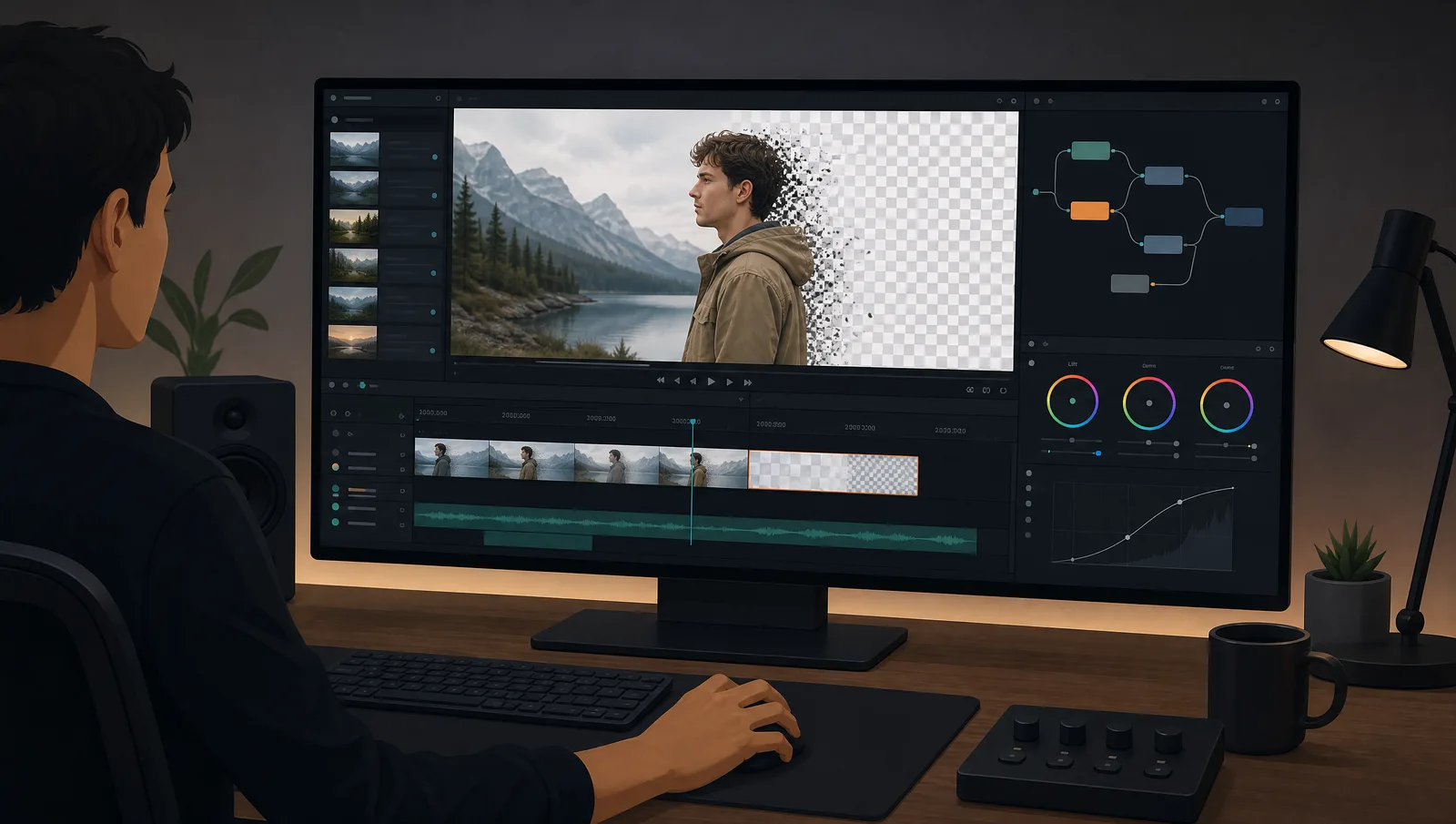
Unscreen made one-click video background removal popular — but its free tier caps you at low resolution with a watermark, and "Pro" gets pricey fast. If you've hit those limits, you're not stuck. Below are the 7 best Unscreen alternatives in 2026, compared on the things that actually matter: free tier, watermark, transparent export, and length limits — so you can pick a video background remover that fits how you actually work.
What is Unscreen, and why look for an alternative?
Unscreen is an online tool that removes the background from videos and GIFs automatically — no green screen, no manual keying. It's genuinely easy, which is why it's the default many people reach for. The friction shows up at export:
- Free tier: watermarked, low resolution, short clips only.
- Pro pricing: scales by the minute, which adds up for regular work.
- Format limits: transparent export and high resolution are gated behind paid plans.
None of that makes Unscreen bad — but if you need clean transparent export, no watermark, or longer clips, an alternative video background remover often does the same job with fewer limits.

See video background removal in action
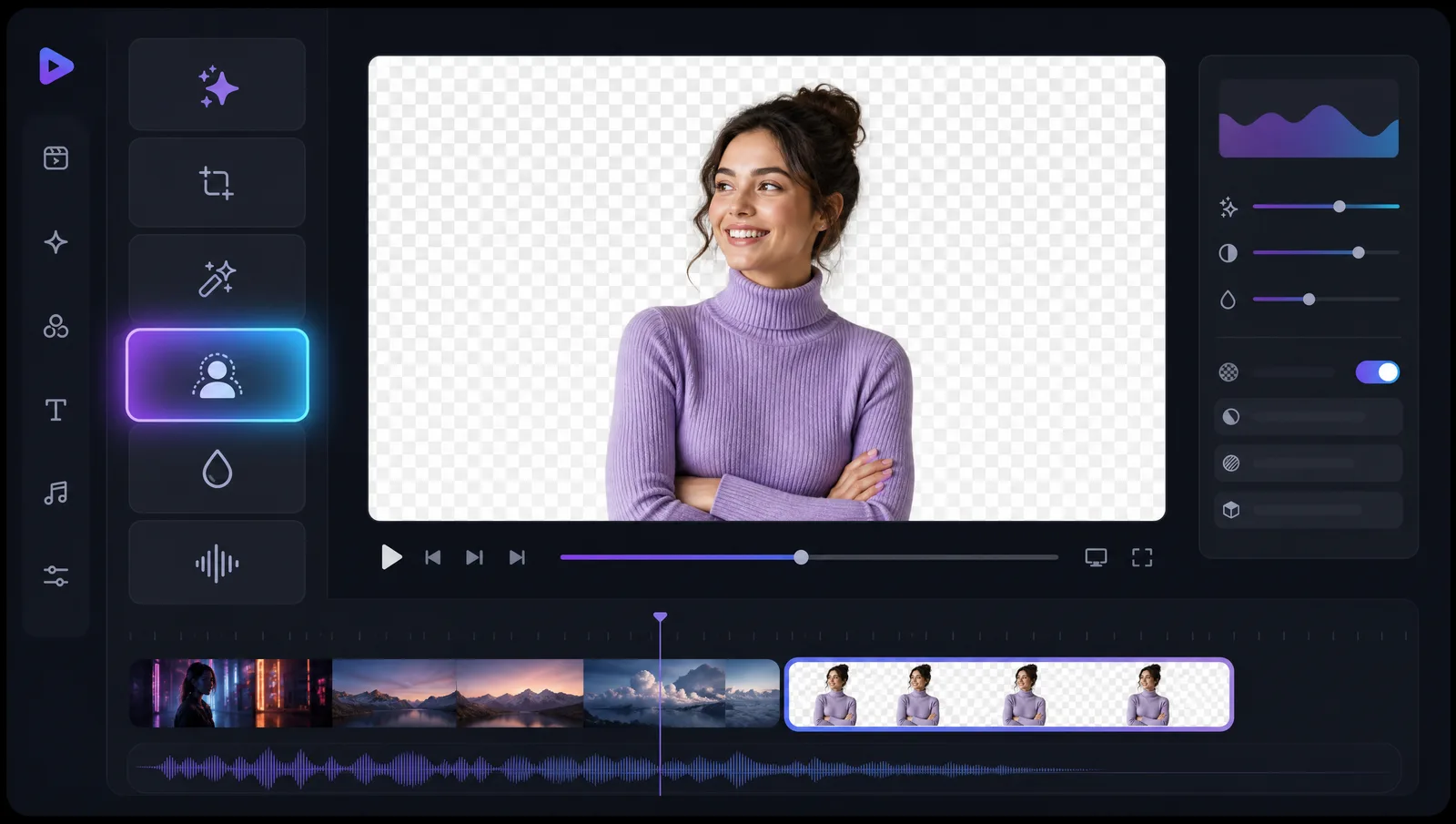
Upload a clip and watch the background disappear — no green screen, no watermark, all in your browser.
Try it freeThe 7 best Unscreen alternatives at a glance
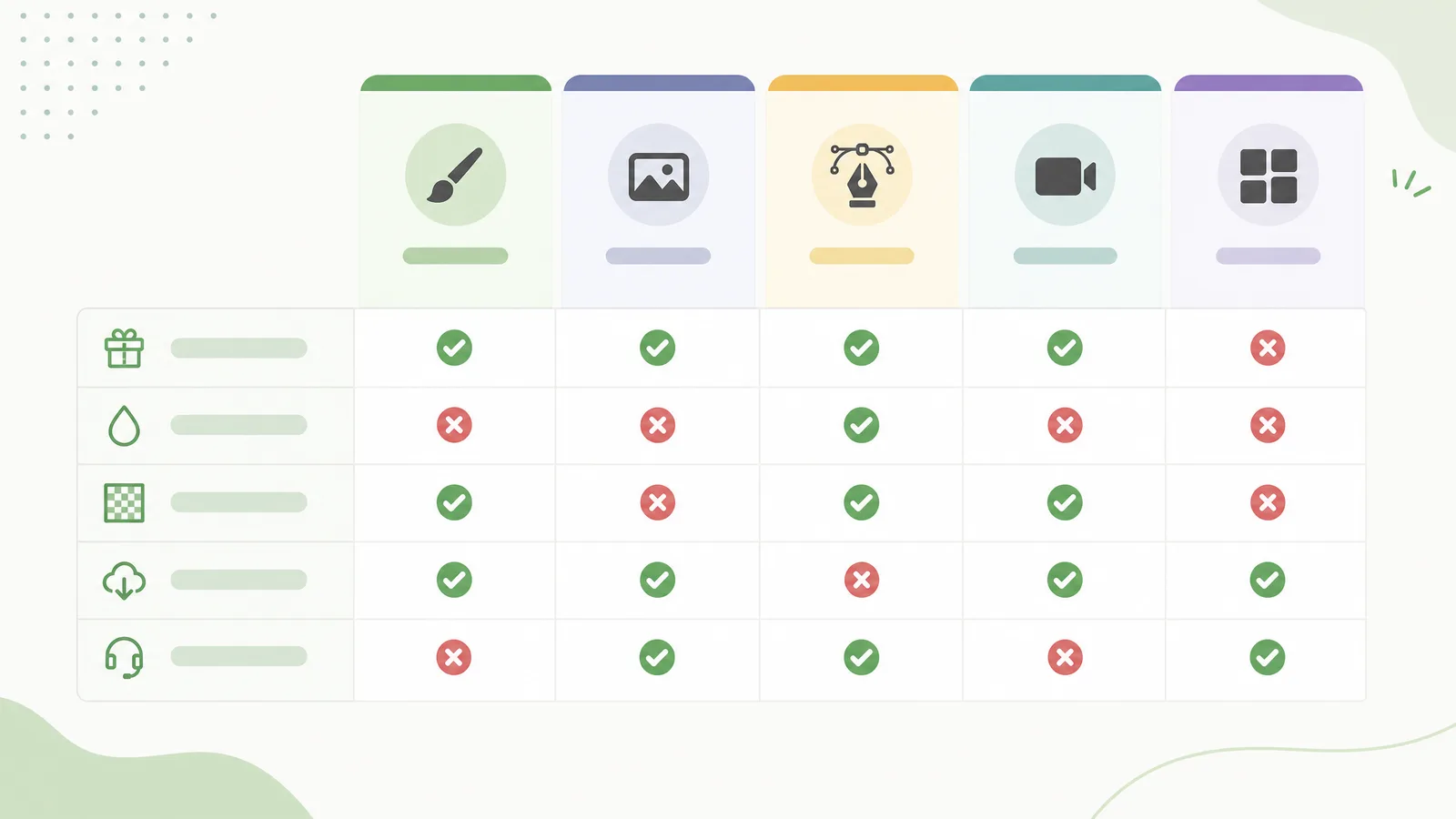
Here's how the top alternatives compare on what matters for video background removal:
| Tool | Free tier | Watermark (free) | Transparent export | Length limit | Best for |
|---|---|---|---|---|---|
| RemoveVideoBG | ✅ (free to start) | ❌ none | ✅ WebM/MOV | Long clips | Clean transparent export |
| Kapwing | ✅ | ✅ on free | ⚠️ limited | Short on free | All-in-one editing |
| Veed.io | ✅ | ✅ on free | ⚠️ limited | Short on free | Subtitles + editing |
| Runway | ✅ (credits) | ❌ | ✅ | Credit-based | AI video effects |
| CapCut | ✅ | ❌ | ✅ | Generous | Mobile/social editing |
| Adobe Express | ✅ | ❌ | ⚠️ limited | Short | Adobe ecosystem |
| Canva | ✅ (Pro feature) | ❌ | ⚠️ limited | Short | Design + templates |
The pattern: most all-in-one editors bolt background removal onto a bigger suite, so transparent export and length are limited on free tiers. Dedicated removers tend to give cleaner alpha export with fewer caps.
Remove your video background now
Automatic, accurate cutouts in minutes. Start free — no install, no watermark.
Get startedHow to pick the right alternative
Match the tool to your actual need:
- You need clean transparent files (WebM/MOV) with no watermark → a dedicated video background remover like RemoveVideoBG, built for alpha export — try it as a free Unscreen alternative.
- You already edit in an all-in-one suite → Kapwing, Veed, or CapCut keep everything in one place, if you can live with free-tier limits.
- You want AI video effects beyond removal → Runway, though it's credit-based.
- You're deep in design templates → Canva or Adobe Express, with removal as a side feature.
The honest trade-off: all-in-one tools save you app-switching, dedicated removers give cleaner edges and exports. If background removal is the main job, dedicated usually wins.

How to remove a video background without Unscreen
The workflow is the same on any good video background remover: upload your clip, let the AI cut out the background, export transparent or with a new background. No green screen, no manual keying. For a step-by-step on a specific case, see our guides on removing a green screen and exporting a transparent background.
Before committing to a paid plan anywhere, run one real clip through the free tier and check the export: watermark, resolution, and whether the transparent file actually keeps its alpha channel. That five-minute test tells you more than any feature list.
Free vs paid: what you actually get
Almost every tool here has a free tier, but "free" means very different things. On free plans, the common limits are a watermark, capped resolution (often 720p or lower), short clip length, and transparent export locked behind paid. That last one matters most for video work — if you need a real alpha channel (WebM or ProRes MOV) and the free tier only exports MP4, you'll hit a wall fast.
Paid plans typically remove the watermark, unlock higher resolution and longer clips, and open up transparent export and batch processing. The question isn't "free or paid" in the abstract — it's which limit hits you first. A creator making short watermark-free social clips may never need to pay; someone exporting transparent 4K for editing will. Test your actual use case on the free tier before deciding, because the limit that matters is the one you'll bump into every day.
What to look for in an Unscreen alternative
Beyond price, four things separate a tool you'll keep from one you'll drop:
- Clean edges on real footage. The whole job is the cutout — check how it handles hair and soft edges on a clip you actually shot, not just a demo.
- True transparent export. Confirm it outputs a real alpha channel (WebM VP9 or ProRes 4444), not just a background swap. Many editors limit this to paid tiers.
- No watermark on output. A watermark on a free export often means you're paying one way or another.
- Reasonable length and resolution limits. Match these to your real clips — a 30-second cap is fine for social, useless for a tutorial.
A dedicated video background remover tends to win on the first three because removal is the product, not a side feature bolted onto a larger editing suite.
A closer look at the top alternatives
The table shows what each tool does — here's the nuance behind the checkmarks:
- RemoveVideoBG is built around one job: clean alpha export. No watermark, WebM and ProRes MOV out of the box, and it works on everyday footage with no green screen — the closest fit if transparent files are your goal.
- CapCut is free and excellent on mobile, the easy pick for social and short-form editing. Transparent export is possible but less direct than on a dedicated remover.
- Kapwing and Veed keep everything in one browser suite, but their free tiers add watermarks and short length caps that nudge you toward paid. If removal is the only step you need from that suite, a dedicated VEED AI background remover alternative skips the editor and the watermark.
- Runway has the strongest AI effects beyond removal, though its credit-based pricing adds up for steady work.
Match the tool to your main job, not its longest feature list — a dedicated remover for clean cutouts, an all-in-one suite if editing is the bigger task.
What does Unscreen cost, and where do alternatives win?
Unscreen's free tier is genuinely usable for quick tests, but it watermarks your export, caps resolution, and limits clip length — and its Pro plan is billed by the minute, which adds up fast for regular work. That per-minute model is exactly where alternatives win: a tool with a flat free tier or a credit bundle is cheaper once you're processing clips weekly rather than occasionally. Before you commit anywhere, price your actual monthly volume. A few short clips a month and Unscreen's free tier may be all you need; a steady stream of longer exports, and a dedicated remover with no watermark and no per-minute meter usually costs less for the same output. The honest answer is that there's no universally cheapest tool — only the one that's cheapest for your volume, resolution, and export needs. Work out roughly how many minutes you process a month, then compare that against each tool's free allowance before paying for anything.
How to move your workflow off Unscreen
Switching is low-risk because the workflow barely changes — upload, let the AI cut out the background, export. Before you move everything over, run one real project through the new tool and check three things: does the transparent export keep a true alpha channel, is the output watermark-free, and does it handle your typical clip length without a hard cap? If all three pass on a clip you actually shot — not a polished demo reel — you can switch with confidence. Keep your old Unscreen exports until you've confirmed the new tool matches them on edge quality around hair and soft detail, since that's where cheaper removers sometimes fall short. And if you batch-process a lot of clips, check whether the new tool lets you queue several at once, because that often saves more time than any single-clip speed difference.
FAQ
What is the best free Unscreen alternative?
For clean transparent export with no watermark, a dedicated video background remover like RemoveVideoBG is the strongest free option. If you want editing built in, CapCut and Kapwing are solid, though their free tiers add limits on resolution or length.
Is there an Unscreen alternative with no watermark?
Yes. Several video background removers — including RemoveVideoBG, CapCut, and Runway — strip the background without stamping a watermark on the free output. Always test one real clip first, since watermark policies change between free and paid tiers.
Can I remove a video background for free without Unscreen?
Yes. Upload your clip to any free online video background remover, let the AI cut out the background, and export with a transparent or new background. No green screen or install is required.
Which Unscreen alternative is best for transparent export?
Dedicated removers that output WebM (VP9 alpha) or MOV (ProRes 4444) give the cleanest transparent files. Many all-in-one editors limit transparent export to paid tiers, so check the export format before you rely on one.
Why is Unscreen's free version limited?
Video background removal runs on server-side compute, which costs money per minute processed. Free tiers offset that with watermarks, lower resolution, and length caps. Alternatives make different trade-offs, so some offer more generous free output.
Do Unscreen alternatives work without a green screen?
Yes. Modern AI removers separate the subject from the background directly, so they work on everyday footage with no green screen. A green screen can still give slightly cleaner edges, but it's not required.